Your app says the verification email was sent, but the customer can't find it. Meanwhile, a campaign to Gmail addresses produces a mix of bounces, retries, and messages sitting in Spam. It's tempting to call all of this blocking on Gmail, but those symptoms don't share a single fix.
A recipient's personal block, an authentication rejection, and reputation-driven spam placement happen at different points in delivery. Start by identifying which one you're dealing with. Otherwise, you can spend hours changing DNS records for a recipient preference, or cleaning a list while your sending service still fails authentication.
Table of Contents
- Diagnose Whether Gmail Is Blocking You
- What a Recipient Block Actually Does
- Authentication Failures That Get Mail Rejected
- Reputation, Complaints and Spam Traps
- How to Screen Addresses Before Each Send
- Recovering From a Block by Cause
- Confirm Your Setup Before the Next Send
Diagnose Whether Gmail Is Blocking You
Start with the delivery event, not the open rate. A rejection means Gmail refused the message. A deferral means the sending server should retry later. Spam placement means Gmail accepted the message but didn't put it in the inbox.
Those distinctions determine where to investigate. Your email provider's event log should show the recipient, timestamp, delivery status, and complete SMTP response. Preserve the response text, not just the dashboard's shortened label.
Symptoms, meanings and where to look
| Symptom | What it usually means | Where to look |
|---|---|---|
| Rejected with SMTP 550 5.7.26 | Gmail rejected the message for failing authentication requirements | Bounce log and DNS records |
| Deferred with SMTP 421 4.7.26 | Unauthenticated mail is being rate-limited | Sending server logs and DNS records |
| Delivered but lands in Spam for one recipient | A personal block is possible, but ordinary filtering can produce the same symptom | The block itself isn't visible to the sender |
| Spam placement across many recipients with no bounces | Reputation, complaint rate, or content signals | Google Postmaster Tools spam rate and reputation reports |
| Hard bounces to specific addresses | The mailbox may not exist, or the address may be mistyped | Full bounce response and verification results |
Read the complete code and explanation together. The authentication-related rejection and deferral codes identify a sender-side problem, but a generic permanent failure can describe other conditions. Don't classify every rejected message as an authentication failure.
A hard bounce to an isolated address often points to an invalid mailbox, especially when other recipients at the same provider receive mail successfully. Confirm that interpretation in the response before suppressing the address.
Diagnostic rule: An accepted message proves neither inbox placement nor a personal block.
Gmail's sender guidance identifies authentication and low domain or IP reputation as delivery concerns. Neither requires a recipient to have manually blocked you.
For outbound teams, Stamina's resource on email deliverability for sales teams is useful context for treating delivery as an operational workflow rather than a copywriting problem.
Check the bounce log first. Authentication errors call for infrastructure work; isolated Spam placement calls for recipient-level investigation; widespread Spam placement calls for reputation and consent checks. Address-specific failures belong in verification and suppression workflows.
What a Recipient Block Actually Does
A recipient opens your message, chooses More, and selects Block. According to Google's sender-blocking instructions, Gmail routes future messages from that sender to Spam. It doesn't reject them at the SMTP connection.
The recipient starts the action inside the message interface.
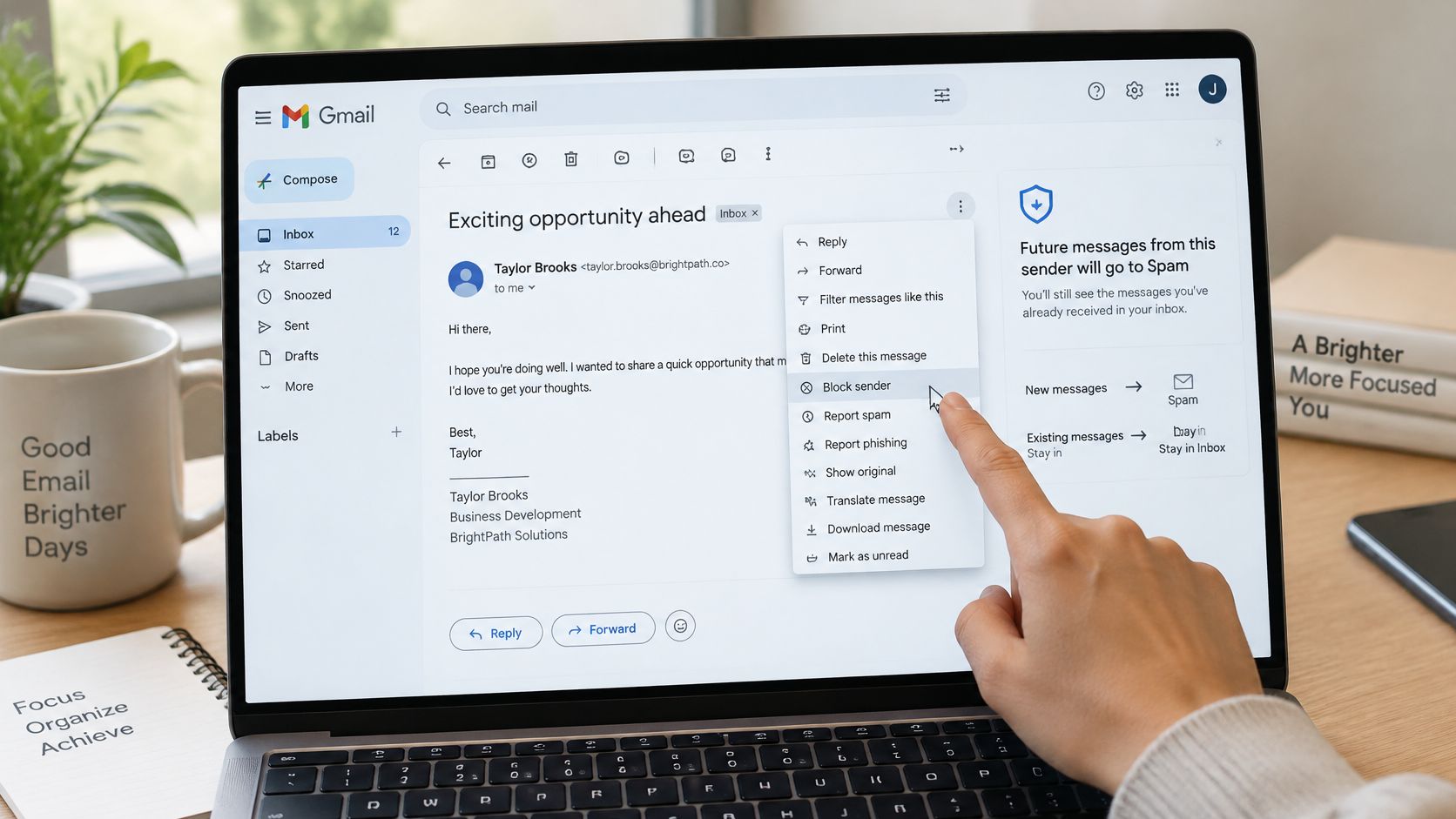
Say a subscriber no longer wants your newsletter and blocks its sender address instead of unsubscribing. Your next issue is accepted, your provider records delivery, and that subscriber finds it in Spam. Existing messages aren't automatically cleared from the inbox.
Your sending system doesn't receive a personal-block notification. That makes this different from a complaint event or an unsubscribe request you can process automatically.
Unblocking requires the recipient's action
On Gmail's desktop interface, the recipient can remove the rule:
- Open Settings.
- Choose See all settings.
- Open Filters and Blocked Addresses.
- Select Unblock next to the sender and confirm.
Moving a message out of Spam isn't a reliable substitute for explicitly removing the block. If the person wants future messages, have them check the blocked-address setting rather than repeatedly rescuing individual emails.
This video demonstrates the recipient-side controls.
The rule applies to the blocked sender address. Mail arriving through another address, alias, or mailing-list identity may not match it. That limitation isn't permission to rotate sender addresses to bypass someone's decision.
For recipients, unsubscribe fits a legitimate subscription they no longer want; report spam fits unsolicited or deceptive mail; a filter fits a broader organization rule. Blocking is an address-specific preference.
If a recipient tells you they blocked your mail, suppress optional future sends. If multiple recipients express the same objection, investigate your collection method, frequency, and content rather than treating each person as an isolated technical problem.
Authentication Failures That Get Mail Rejected
Authentication tells Gmail whether your sending infrastructure is authorized to use your domain. It's a prerequisite, not an inbox guarantee.
Google's sender requirements require SPF or DKIM for all senders, and SPF, DKIM, and DMARC for bulk senders sending at least 5,000 messages daily to Gmail accounts; they also advise keeping the Postmaster Tools spam rate below 0.1% and preventing it from reaching 0.3% or higher.
Gmail authentication requirements by sender type
| Sender type | Required authentication | Enforcement and threshold |
|---|---|---|
| Any sender | SPF or DKIM | Unauthenticated mail may receive the authentication-related deferral or rejection described below |
| Bulk sender | SPF, DKIM, and DMARC | Meet the bulk-sender requirements and complaint targets stated above |
| Forwarders and mailing-list relays | Preserve valid DKIM where possible; forwarding often breaks SPF | Check authentication on the received message, not just the original |
| Sender with low domain or IP reputation | Authentication requirements still apply | Passing authentication doesn't repair reputation; monitor Postmaster Tools |
SPF authorizes sending infrastructure for the envelope sender's domain. DKIM adds a cryptographic signature that lets the receiver verify the signing domain and detect changes to signed content. DMARC checks whether a passing SPF or DKIM identity aligns with the visible From domain, and publishes handling and reporting preferences.
DMARC doesn't require every authentication mechanism to pass. Its central requirement is a passing, aligned identity.
For unauthenticated mail, Google documents SMTP 421 4.7.26 as a possible rate limit and SMTP 550 5.7.26 as a possible rejection in its requirements linked above. These are possible enforcement outcomes, not a guaranteed progression from temporary failure to permanent rejection.
Say a new transactional service starts sending without working DKIM. Missing DKIM alone doesn't prove why Gmail refused it: inspect SPF, alignment, and the complete response as well.
Check the received message
Send through the actual production path to a Gmail test account. Open Show original and inspect Authentication-Results, looking for SPF, DKIM, and DMARC passes and the domains associated with them.
H2's guide to check email authentication and inbox placement provides a useful audit workflow. For application-level troubleshooting, use our explanation of an email authentication error alongside the sending service's logs.
Apply fixes in this order:
- Correct SPF for every legitimate sending service.
- Enable DKIM signing and publish the service's required records.
- Start DMARC in monitoring mode, collect reports, and identify legitimate senders.
- Tighten enforcement after validation, not before you've accounted for production mail.
Reputation, Complaints and Spam Traps
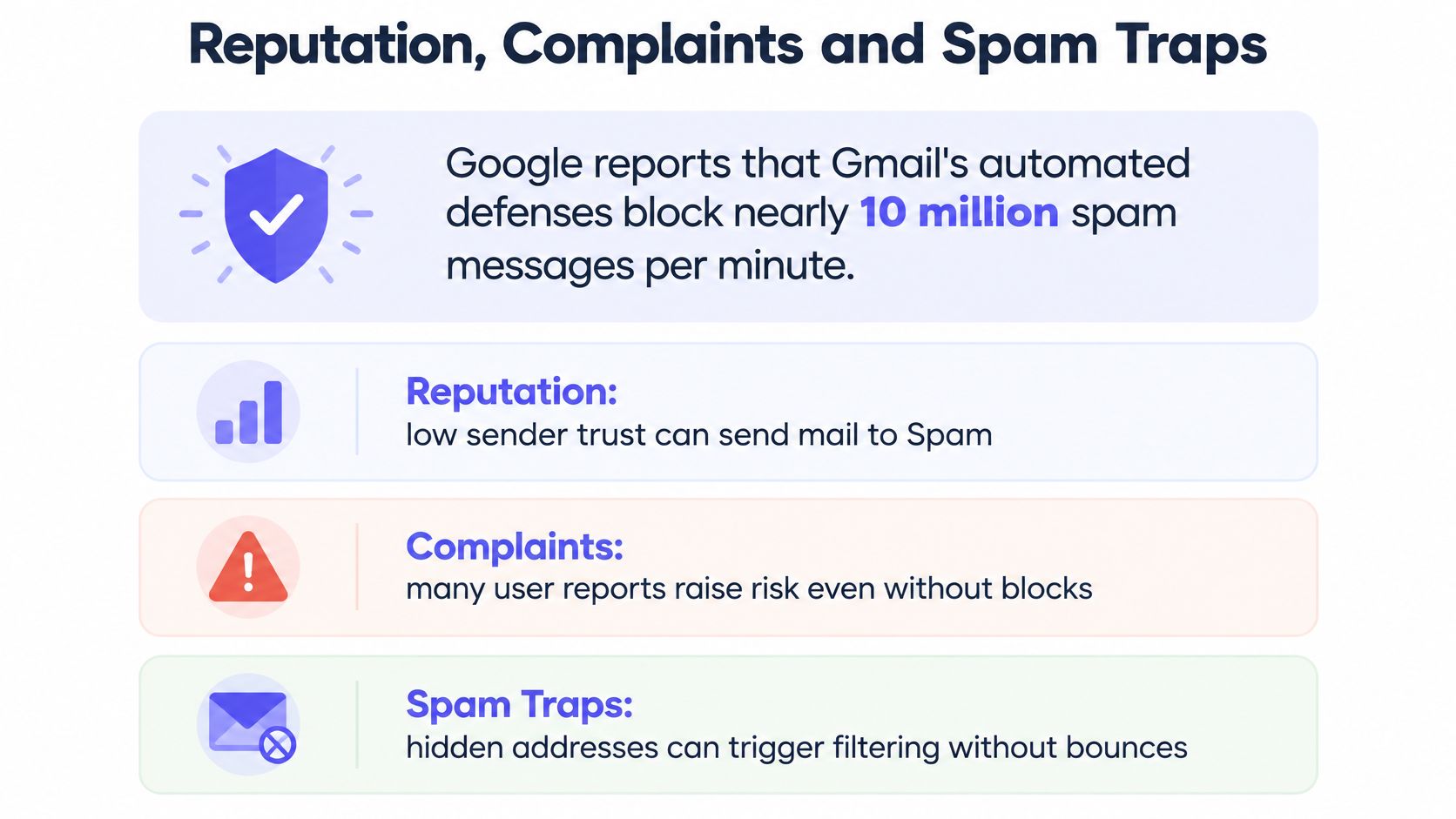
Gmail can accept authenticated mail and still place it in Spam across many recipients. Google reports that its automated defenses block nearly 10 million spam emails every minute in its Gmail protection overview.
That's platform-wide filtering, not a count of people pressing Block. For a legitimate sender, the useful question is what Gmail can infer from that sender's mail and recipient responses.
The main operational signals fit into these categories.
Look beyond whether addresses exist
- Complaints: Recipients reporting unwanted mail give you a direct reason to reconsider targeting, frequency, and permission.
- Hard bounces: Invalid destinations reveal collection or maintenance problems. Investigate the source of those addresses instead of retrying them.
- Engagement: Replies, clicks, and continued product activity help you identify people who still expect your messages. Don't use opens alone as proof of interest.
- Spam traps: These addresses identify poor sending practices rather than an ordinary subscriber relationship. Some are created for that purpose; others can be repurposed abandoned addresses.
A verification result can't establish consent. Say a growth team imports a list of functioning addresses collected for an unrelated purpose. The mailboxes can all exist while recipients still consider the campaign unsolicited.
Spam-trap screening helps identify risk, but it's risk reduction, not a guarantee. It doesn't replace permission-based collection, double opt-in, or pruning contacts who no longer engage.
A technically valid list can still be a list you shouldn't email.
Public blocklists are another diagnostic input, not a complete view of Gmail's internal decisions. Our guide to what a blocklist is explains that distinction.
Make list quality measurable
Review complaints on a regular schedule and compare them by signup source, campaign, and audience segment. A campaign-wide average can hide a poorly performing imported segment.
Define an inactivity window appropriate to the product and sending frequency, then suppress contacts with no meaningful engagement. Consider clicks, replies, and product activity alongside opens.
Treat a sudden bounce increase as a collection problem until you've ruled that out. Pause the affected source, inspect recent imports or form changes, and avoid sending another campaign to the same unexamined segment.
How to Screen Addresses Before Each Send
Screen addresses when people submit them, then recheck older lists when their condition or provenance warrants it. Verification should produce an actionable result, not a blanket rejection whenever a mail server doesn't answer.
Run the checks in order
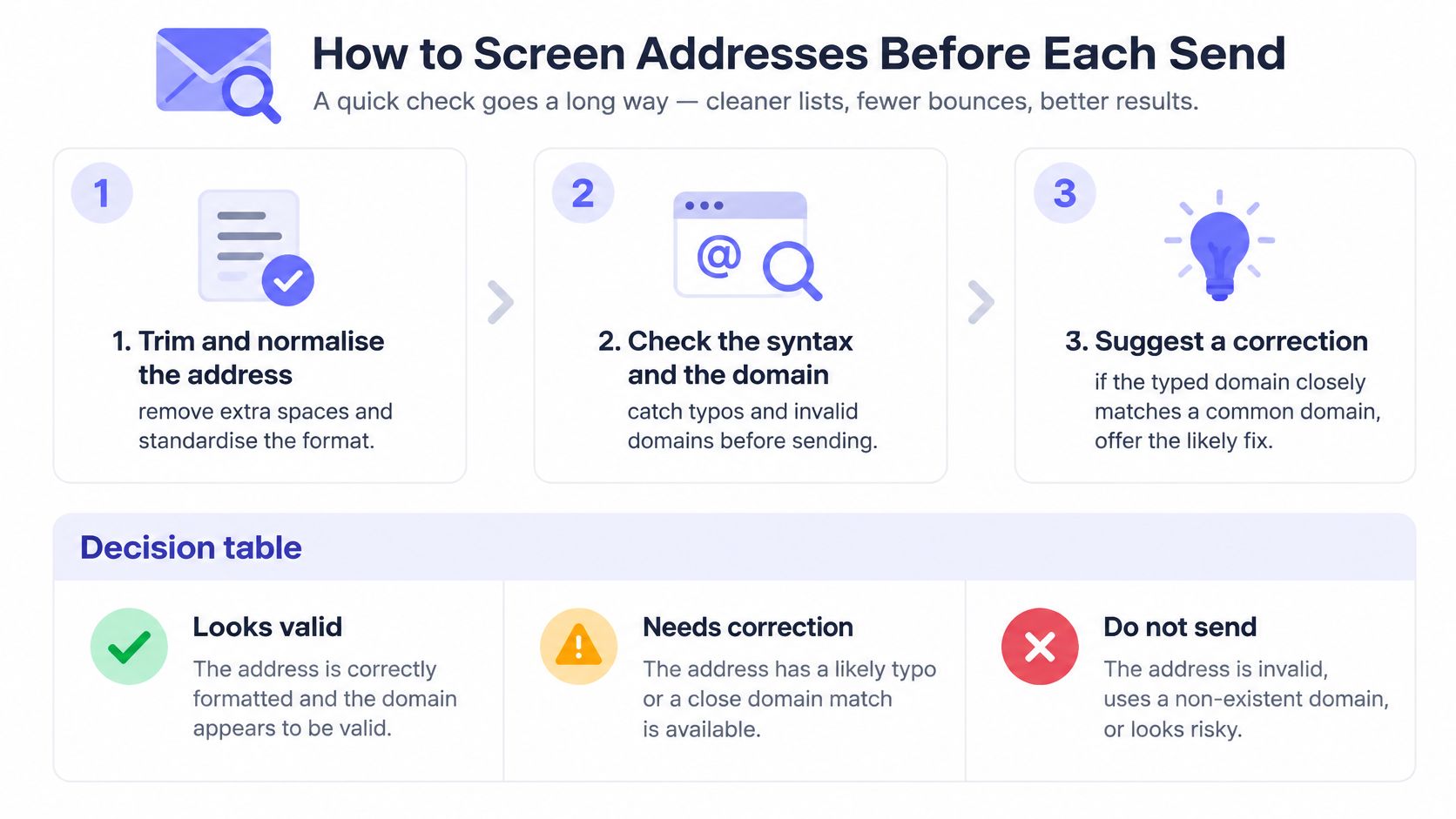
Trim and normalize the address. Remove surrounding whitespace and normalize the domain consistently. Don't rewrite the mailbox portion based on assumptions about how every provider handles it.
Check syntax and the typed domain. Catch missing separators and malformed input. If someone enters
gmal.com, offergmail.comas a suggestion rather than changing their address.Check mail routing. Inspect the domain's MX records and interpret the result with the verifier's domain checks. An unresolved domain is different from a mailbox that hasn't answered a probe.
Attempt SMTP existence verification where supported. The receiving server may accept, reject, or decline to disclose whether a mailbox exists. Treat a timeout as uncertainty, not proof that the user supplied a fake address.
Classify disposable, role-based, and free-provider addresses. Apply separate policies to each category. A Gmail address isn't low quality by default, and a shared departmental inbox can be a legitimate business contact.
Detect catch-all behavior. A domain that accepts arbitrary recipients prevents a simple SMTP acceptance from proving that a particular mailbox exists.
Combine the verdict, score, and reason code. Use a deterministic policy so support and engineering can explain why the same input receives the same treatment.
The visual below summarizes the front-end checks before deeper verification.
Verification result and the action to take
| Result | Action | Reason |
|---|---|---|
| Valid | Accept and send expected mail | The mailbox checks passed, but consent still governs sending |
| Undeliverable | Block at signup and offer correction | The result identifies an address that would bounce |
| Unknown, including a slow or unresponsive server | Don't block solely on this result; retry or use the score | Uncertainty can include real users |
| Catch-all unverifiable | Use the score; never block on this status alone | SMTP acceptance doesn't confirm the individual mailbox |
| Disposable or role-based address | Apply your policy, flag or block | Temporary or shared ownership may not fit the account's requirements |
Blocking an undeliverable signup is appropriate. Blocking every unknown result turns temporary server behavior into lost registrations.
Our policy is never to reject a user solely because the result is catch_all_unverifiable. Use the score and your account-risk requirements to make a more nuanced decision.
For acquisition teams, IronPeak Marketing's lead list guide adds collection context; our guide to cleaning up email lists addresses existing contacts.
A signup gate checks each new address as it enters, so that gate doesn't require a cron job or periodic cleanup to function. Existing lists still need maintenance. Log the reason code for every rejected signup, and show the user a correction path rather than an unexplained failure.
Recovering From a Block by Cause
Recovery starts with evidence of the failure, not a resend button. Google's blocking documentation describes a recipient-controlled rule, which means a sender can't repair that preference through DNS or address verification.
Use a recovery path that distinguishes the relevant cause.
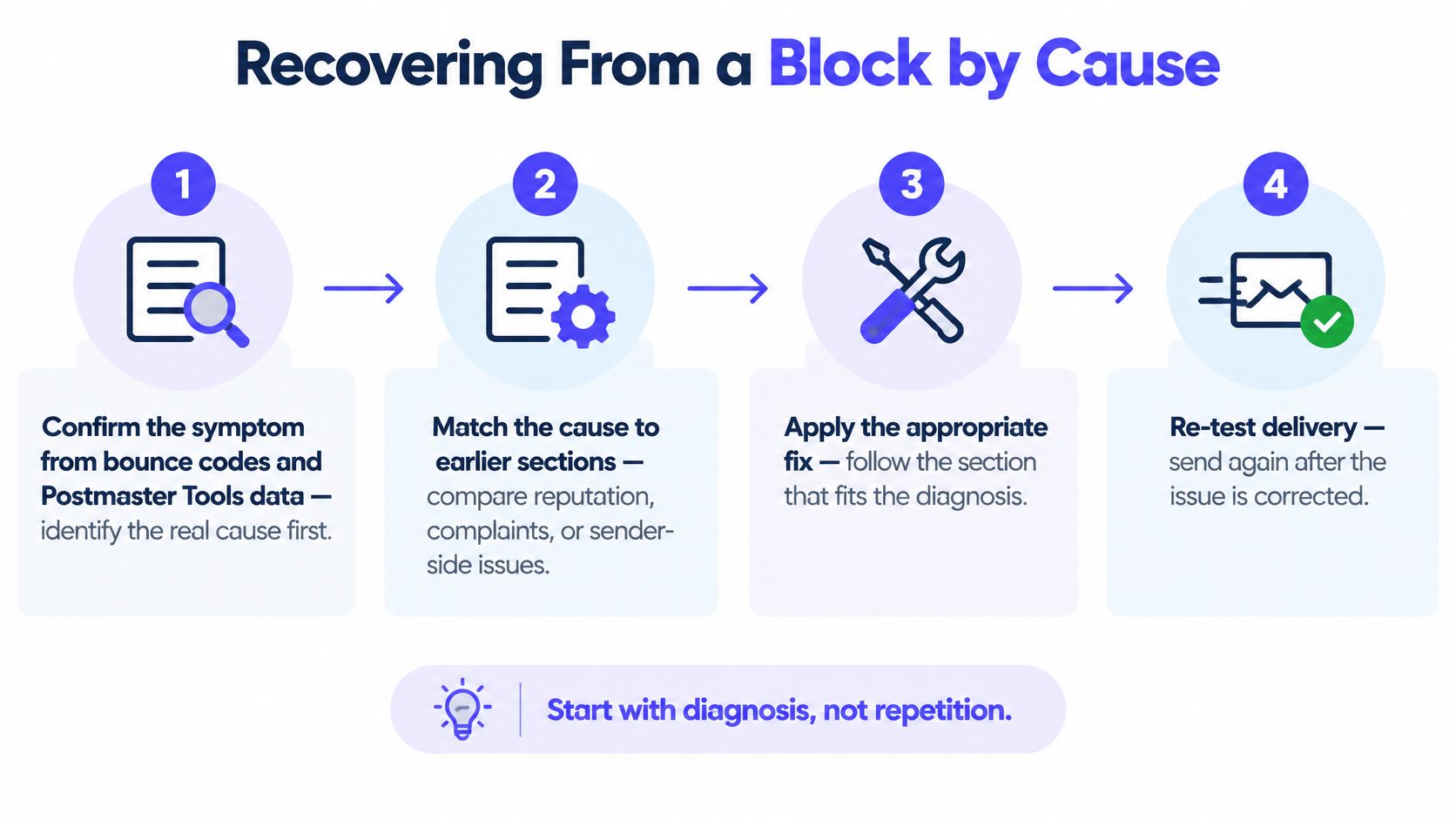
Apply the fix that matches the evidence
Confirm the symptom. Export the complete bounce or deferral response and compare it with Postmaster Tools data. Separate rejected messages from accepted messages whose placement a recipient has confirmed.
Repair authentication when it fails. Correct authorized sending sources, enable signing, and validate alignment through the production path. Don't change unrelated DNS records because a single recipient found a message in Spam.
Suppress known failures and objections. Remove hard-bounced addresses from active sends and honor complaints and unsubscribe requests. Keep suppression records so a later import doesn't reactivate them.
Constrain reputation recovery sends. Reduce unnecessary volume and prioritize recipients with clear permission and recent meaningful engagement. Don't manufacture engagement or send extra messages merely to generate activity.
Retest the actual workflow. Trigger a production-style signup email or campaign sample to Gmail accounts and inspect the received headers. A manually composed message from a different service doesn't validate your application's sending path.
Use administrative controls for organizational blocking. If you administer Workspace and need to stop an unwanted sender across users, consider address- or domain-level settings. Google Workspace's blocked-sender guidance covers these controls, which are separate from a personal Gmail block.
Respect an individual block. If a recipient confirms they don't want your mail, suppress optional sends to that address. Don't switch identities to reach them, and don't ask unrelated recipients to change their settings.
Recovery check: A successful test validates that test path. It doesn't prove every recipient will receive the next campaign in their inbox.
Reputation recovery doesn't have a dependable completion date. Watch delivery errors, complaints, and reputation indicators across subsequent legitimate sends rather than promising an immediate reset.
Keep a change log with the affected service, diagnosis, correction, and test result. If you resend the same list without fixing the underlying cause, you're repeating the conditions that produced the problem.
Confirm Your Setup Before the Next Send
Make the next campaign a go or no-go decision, not an experiment on the full list. Pull a recent, consistent reporting window from your sending provider and compare it with available Postmaster Tools data.
Review campaigns and transactional streams separately. A clean password-reset stream shouldn't conceal complaints from marketing mail, and a campaign average shouldn't conceal a problematic signup source.
Your release checklist
- Authentication passes through production. Trigger a real application message, inspect its received authentication results, and confirm that the visible sender uses an aligned identity.
- Hard bounces decline after cleaning. Compare equivalent audiences and sending workflows. If invalid-address failures continue, investigate the collection source rather than repeatedly cleaning the same export.
- Complaints remain comfortably below Google's published target. Look at individual campaigns and acquisition sources, not just the blended rate.
- Every signup is checked before list entry. Confirm that an alternate registration endpoint, CRM import, or integration can't bypass the verification policy.
- Every marketing contact has a consent record. Retain the collection source, permission context, and subscription status. A valid address isn't evidence of permission.
A failed item needs a named owner and a specific correction. Authentication belongs with the team managing sending infrastructure; stale segments belong with marketing operations; bypassed signup checks belong with product engineering.
Put verification where addresses enter
Mailbeam is one option for handling that last engineering task. Our real-time verification endpoint returns a validity result, score, and machine-readable reason at signup, including disposable-address detection at registration.
Our policy prohibits using Mailbeam to verify addresses for spam, phishing, or unsolicited messaging. Verification supports legitimate sending; it doesn't make an unsolicited list acceptable.
Run this check this week and choose the first repair from the evidence: authentication, audience pruning, or signup verification. Hold the affected sends until that cause is corrected and the production path has been retested.
Mailbeam offers real-time email verification so you can catch undeliverable and disposable addresses before they enter your signup workflow. Visit Mailbeam to evaluate the API's validity results, scores, and reason codes, then build a signup policy that rejects known failures without turning away users whose mail servers do not answer.