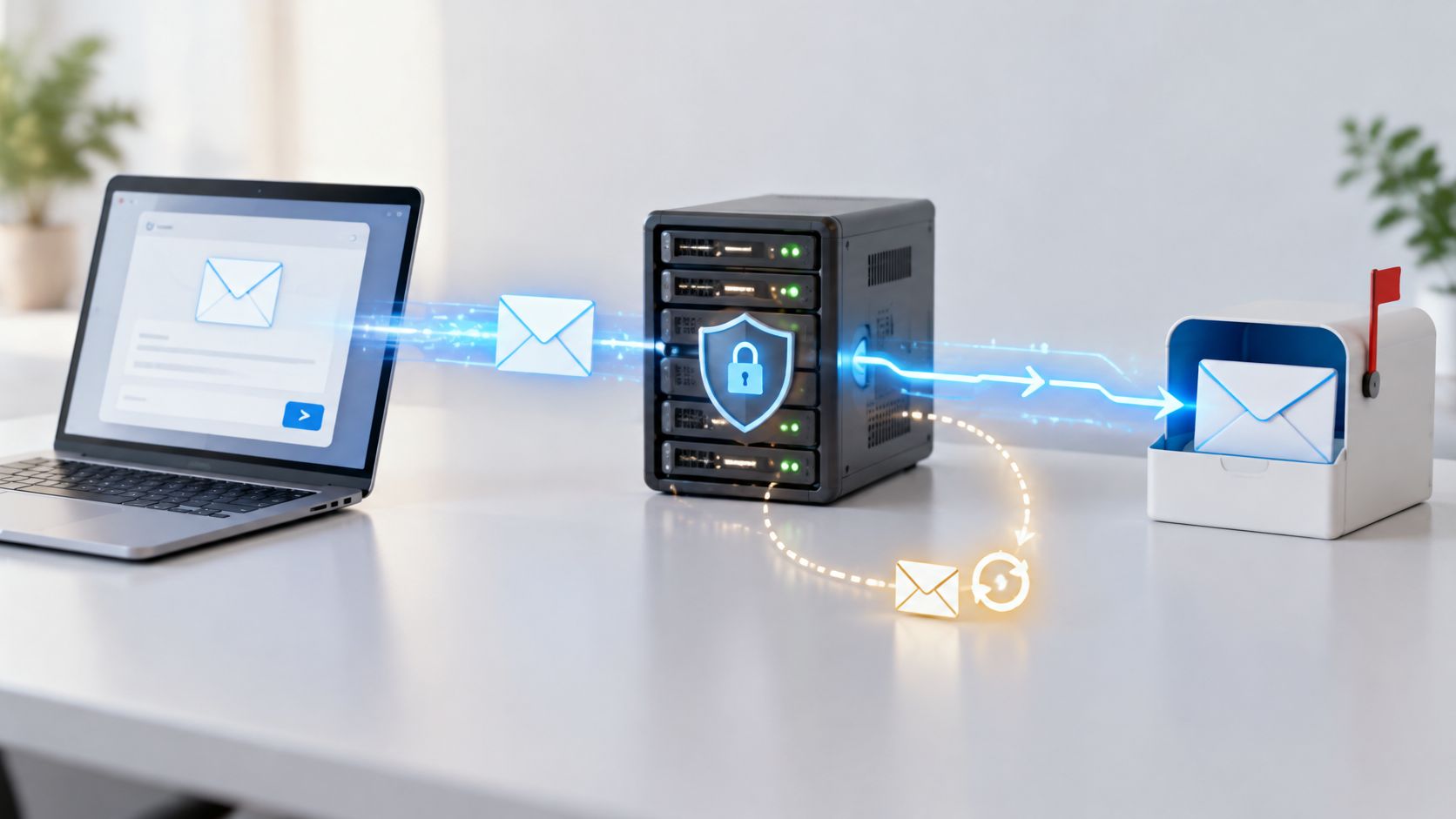
Your application says the email was sent, but the password reset never arrives. The SMTP connection worked, the credentials passed, and the logs show success. Before changing providers or opening firewall rules, identify what succeeded: connecting to a server, submitting a message, and reaching an inbox are different outcomes.
An email SMTP server configuration gets your application onto the sending path. Reliable transactional email also needs authentication alignment, sensible queue handling, transport security, and evidence from the receiving mailbox.
Table of Contents
- Common SMTP Server Names and Settings
- How an SMTP Server Moves Your Email
- Ports 25, 465 and 587 Explained
- SPF, DKIM and DMARC Setup Explained
- Encryption and TLS Settings That Matter
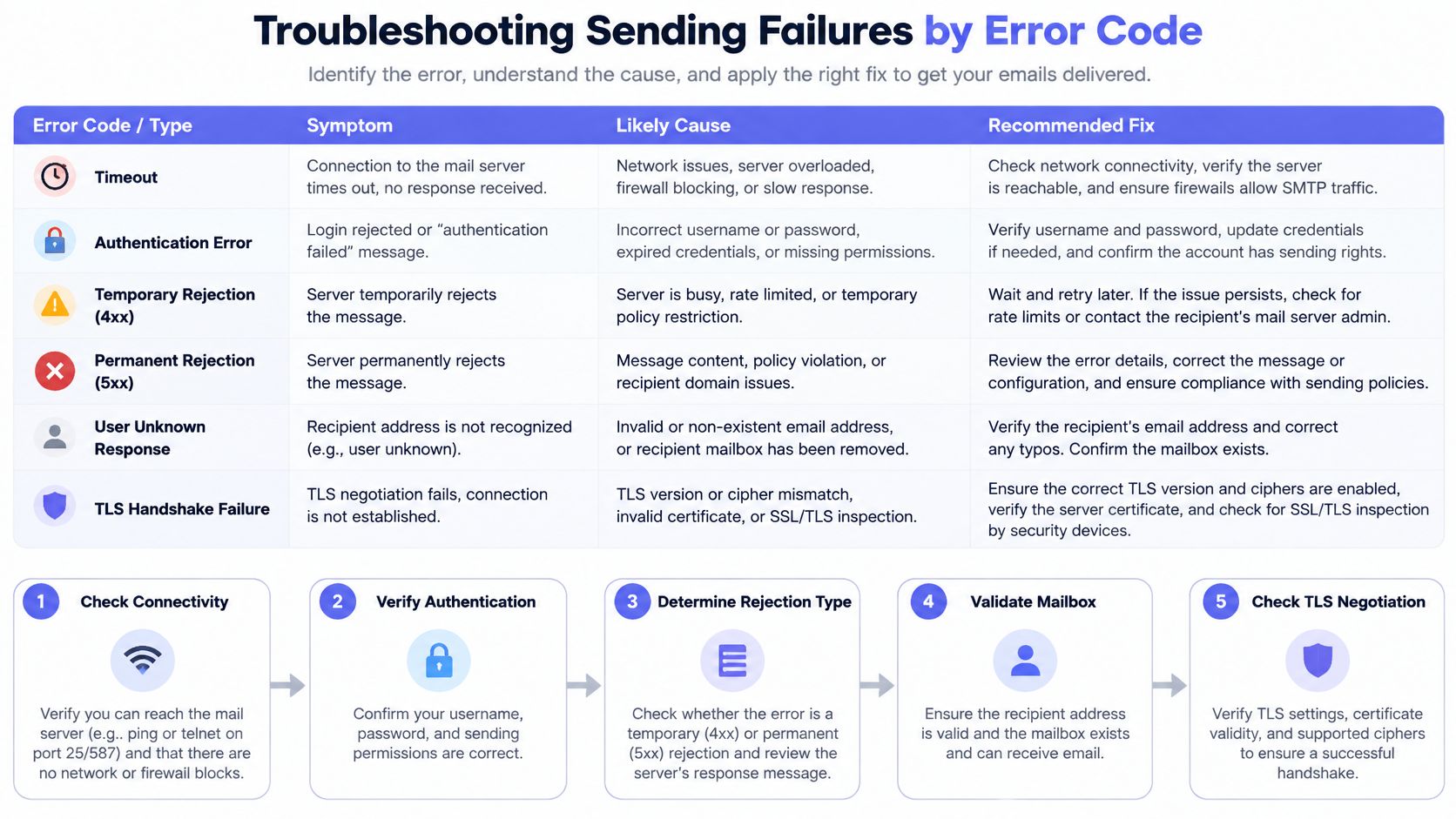
- Troubleshooting Sending Failures by Error Code
- Confirm Your Settings and Check Inbox Placement
Common SMTP Server Names and Settings
For a mail client or application, an SMTP server setting is a hostname, a port, and an encryption mode, paired with credentials. Each provider publishes its own values. Don't assume the server that receives your domain's mail is also the server your application should use to send.
Most configuration screens ask for these fields:
- SMTP host: The provider's submission endpoint, such as
smtp.gmail.com. Enter the hostname, not a webmail address. - Port: Copy the port supported by that endpoint. Common choices are listed below.
- Username: Usually your full email address for mailbox services. Transactional providers may issue a separate SMTP username.
- Password: Use the credential intended for SMTP. Many mailbox providers require an app-specific password or another supported authentication method instead of your normal account password.
- Encryption: Select STARTTLS or SSL/TLS to match the port. An interface labelled SSL/TLS generally means implicit TLS, not permission to enable obsolete SSL protocols.
Common provider settings
SMTP server names and settings for common providers
| Provider | SMTP Host | Ports | Encryption |
|---|---|---|---|
| Gmail | smtp.gmail.com |
587, 465 | STARTTLS on 587; SSL/TLS on 465 |
| Outlook.com and Hotmail | smtp-mail.outlook.com |
587 | STARTTLS |
| Microsoft 365 | smtp.office365.com |
587 | STARTTLS |
| Yahoo Mail | smtp.mail.yahoo.com |
465, 587 | SSL/TLS on 465; STARTTLS on 587 |
| Apple iCloud Mail | smtp.mail.me.com |
587 | STARTTLS |
| SendGrid | smtp.sendgrid.net |
587, 465, 25 | STARTTLS on 587 or 25; SSL/TLS on 465 |
| Mailgun | smtp.mailgun.org |
587, 465 | STARTTLS on 587; SSL/TLS on 465 |
| Amazon SES | email-smtp.[region].amazonaws.com |
Use the submission port listed for your regional endpoint | STARTTLS or TLS Wrapper, matched to the documented port |
These are starting points, not substitutes for account-specific instructions. Amazon SES includes a region in its hostname, so select the endpoint and SMTP credentials for the intended region. Mailgun accounts may also require a regional endpoint rather than the hostname shown.
Microsoft 365 administrators should check whether authenticated SMTP submission is enabled for the intended mailbox and whether the application supports the tenant's permitted authentication method. Correct credentials won't override a disabled service or an authentication policy.
Check credentials before automation
Keep SMTP credentials in your application's secret store, not in source control or browser code. Check whether the provider requires a verified sender address or domain before it permits submission.
Practical rule: Copy the host, port, and encryption mode from the provider's current help page, then send a test message before enabling automated jobs.
A working webmail login doesn't establish that SMTP access is enabled. Test with the actual application identity, sender address, and runtime environment you'll use in production.
How an SMTP Server Moves Your Email
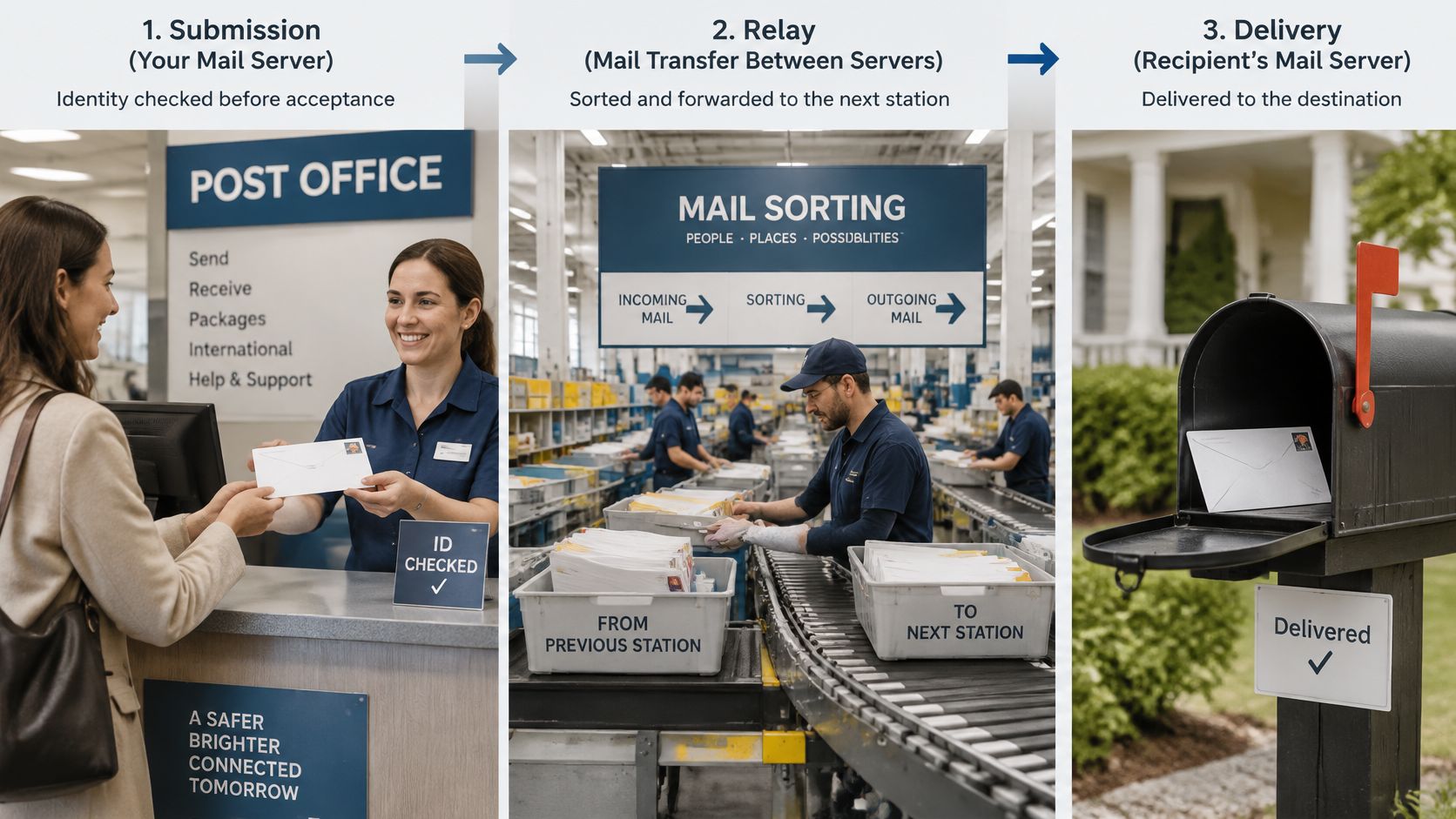
Say your SaaS application sends an account confirmation. The journey resembles a letter moving from a post office counter through sorting offices to its destination, except each server can apply its own acceptance policy.
The diagram separates the submission, relay, and delivery stages.
Submission and relay
At submission, your application hands the message to its configured SMTP service. Like a counter clerk checking the sender's identity, that service authenticates the application and checks whether it may use the requested sender address.
During relay, the sending infrastructure routes the message toward the recipient's domain. The sending mail server looks up the recipient domain's MX records to identify receiving servers. If the next server is unavailable, the sender can retain the message in its queue rather than requiring your application to remain connected.
SMTP's distributed relay design is described in RFC 821: independently operated servers exchange mail rather than relying on a central mailbox system. For a broader distinction between transport and mailbox services, see what an email server does.
Final delivery
The receiving server evaluates the recipient and its own security policies. After acceptance, its delivery system may place the message in a mailbox, quarantine it, or route it through additional filtering. The recipient typically reads mailbox contents through IMAP, POP, or a webmail interface, not SMTP.
The video provides another view of this sending path.
Use the failing stage to choose the investigation:
- Submission failure: Login rejected, sender not authorised, or application policy violated.
- Relay failure: Message queued because the destination is unavailable or temporarily refusing traffic.
- Delivery failure: Unknown mailbox, recipient policy rejection, or subsequent delivery processing failure.
Store-and-forward means responsibility moves between systems. Your submission service can accept responsibility and later generate a bounce when a downstream server refuses delivery. Keep the provider's message identifier so you can follow that journey beyond the application log.
Ports 25, 465 and 587 Explained
A port identifies the service a client wants to reach. The same hostname can expose relay and submission services with different authentication and encryption requirements. Changing the port without changing the encryption mode is a common way to break an otherwise correct configuration.
RFC 6409 separates message relay on port 25 from message submission on port 587, allowing submission services to enforce policies suited to users and applications.
Choose by purpose and encryption
Ports 25, 587, 465 and 2525 compared
| Port | Purpose | Encryption | When to use |
|---|---|---|---|
| 25 | Server-to-server relay | Opportunistic STARTTLS between servers | For relay you operate; often blocked outbound |
| 587 | Message submission by clients and apps | STARTTLS upgrade after an unencrypted start | Default choice when supported by your provider |
| 465 | Message submission | Implicit TLS from the first byte | When the provider documents it or 587 is blocked |
| 2525 | Alternative submission port offered by some hosts | Use the host's documented TLS mode | When standard submission is blocked and the host lists it |
Port 25 is for relay. Receiving mail servers listen for traffic from other mail servers there. Residential ISPs and cloud hosts commonly restrict outbound relay traffic to limit abuse, so an application shouldn't assume direct delivery will be available.
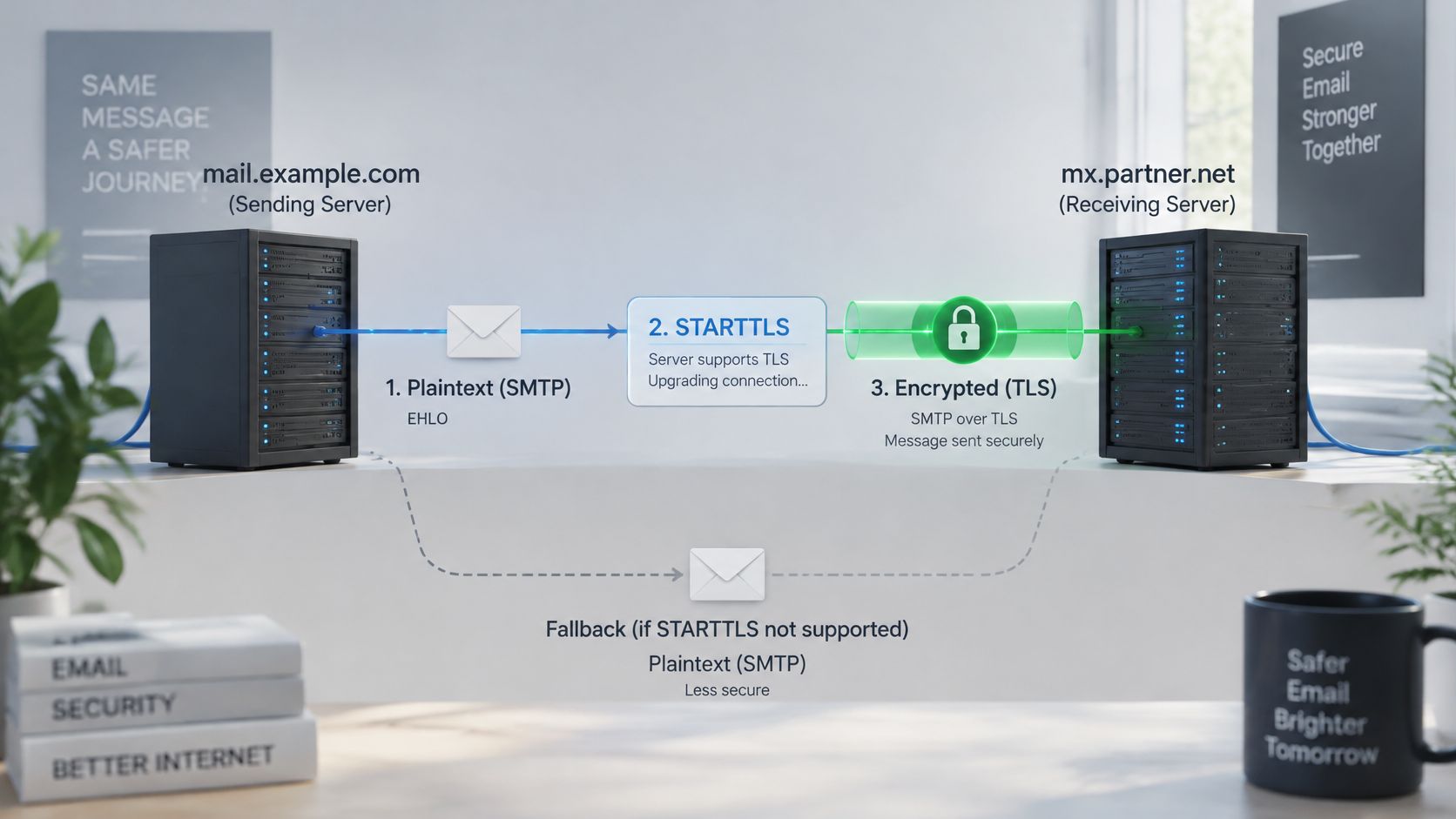
Port 587 is for authenticated submission. The connection begins without TLS, the server advertises STARTTLS, and the client upgrades before sending credentials or message content. Configure the client to require that upgrade, not merely attempt it.
Port 465 uses implicit TLS. The client starts a TLS handshake immediately, before exchanging SMTP commands. It's a current submission option, not something to reject because an application calls it SMTPS or SSL/TLS.
An alternate submission endpoint can help when a network blocks the usual choices, but only when the provider offers it. A different port doesn't bypass authentication, sender verification, or account restrictions.
Recognise a port mismatch
I would start with STARTTLS submission using the provider's documented default. Choose implicit TLS when the provider recommends it or when network restrictions make it the supported alternative. Reserve direct relay for infrastructure you're prepared to operate and monitor.
A blocked connection usually produces a timeout or connection refusal. An authentication error means you reached a service that could respond.
If an implicit-TLS client connects to a STARTTLS endpoint, it may wait for a TLS response while the server waits for SMTP commands. Fix the mode and port together rather than repeatedly resetting the password.
SPF, DKIM and DMARC Setup Explained
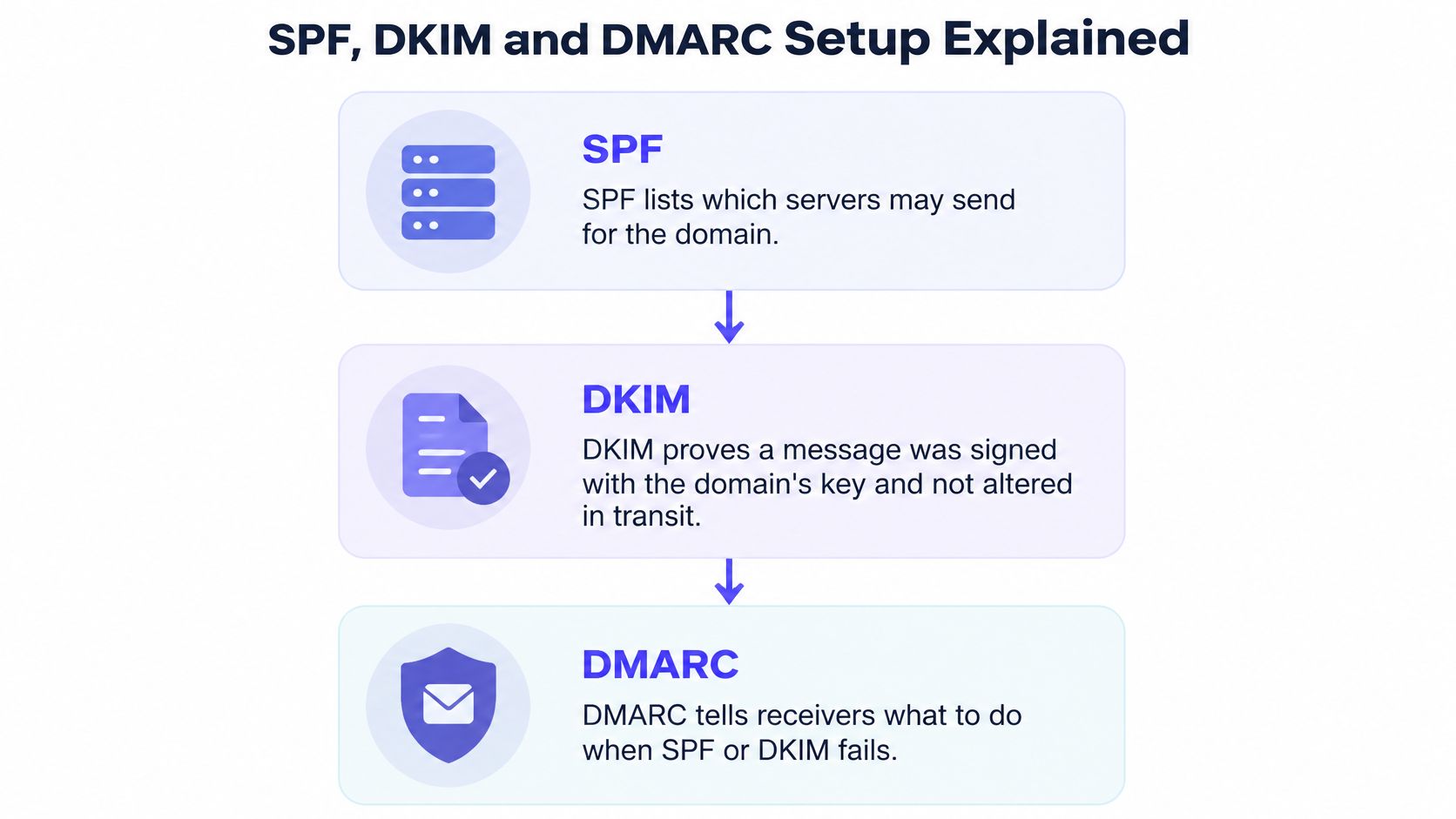
SPF authorises sending servers for the envelope-sender domain. DKIM lets a receiver verify a domain's cryptographic signature over signed message content. DMARC connects authentication to the visible From domain and publishes handling and reporting policy.
These controls solve different problems. SMTP login authorises your application to use a sending service; domain authentication helps the receiving provider evaluate the message that service sends.
What each record establishes
What SPF, DKIM and DMARC prove and where they fail
| Record | What It Proves | Where It Lives | Typical Failure |
|---|---|---|---|
| SPF | The sending server is authorised for the checked envelope-sender domain | TXT record at that domain, often the root domain | A sending service is missing or DNS lookup evaluation fails |
| DKIM | Signed content verifies against the signing domain's published key | Usually a TXT record at the provider-specified selector under _domainkey, sometimes delegated through CNAME |
Wrong selector, missing key, or signed content changed |
| DMARC | A passing SPF or DKIM result aligns with the visible From domain; publishes policy and reporting instructions | TXT record under _dmarc |
Authentication passes for unrelated domains, or enforcement begins before legitimate senders align |
The relationships are shown below.
Alignment is the important check
Say a billing platform sends an invoice with your business in the visible From field. Its envelope sender and DKIM signature both use the platform's own unrelated domain. SPF and DKIM can pass individually while DMARC fails, because neither result authenticates the identity the recipient sees.
Configure the platform's custom-domain signing or aligned return-path feature. DMARC needs a passing, aligned authentication mechanism, not necessarily both. Relaxed alignment permits an appropriate organisational-domain relationship; strict alignment requires an exact domain match.
The distinction is explained in SMTP.com's authentication guidance. When troubleshooting, use the actual message headers rather than assuming that a provider's domain-verification badge proves alignment for every sending stream.
In 2024, 53.8% of surveyed email senders reported using DMARC for authentication, according to Mailgun's State of Email Deliverability 2025 report. That survey finding describes adoption, not whether any particular domain is configured correctly.
Roll out enforcement safely
Inventory every legitimate sender first, including support tools, billing systems, marketing platforms, and application mail. Publish a single SPF record for each relevant sending domain that accounts for its authorised services, then enable the provider-issued DKIM keys for every stream.
Start DMARC in monitoring mode and collect aggregate reports. Review representative business activity, including infrequent billing and support mail, before moving to quarantine or reject. A calendar deadline alone isn't evidence that you've found all legitimate senders.
Use the email authentication error guide to distinguish missing authentication from alignment failures. Tightening policy before identifying the cause can block legitimate messages without fixing the underlying configuration.
Encryption and TLS Settings That Matter
Enabling TLS doesn't make email end-to-end secure. It protects a transport connection, not every copy of the message after arrival. Think of a sealed courier van: outsiders can't read the letter during that journey, but the destination still opens it.
With STARTTLS, servers first establish an SMTP connection and then negotiate encryption. Opportunistic relay can fall back to unencrypted transmission unless an applicable policy requires TLS. Requiring encryption only between your application and submission service doesn't automatically impose the same requirement on later hops.
Enforce encryption deliberately
Google's sender guidance requires TLS for mail transmission and requires senders to configure SPF or DKIM. Treat transport security and sender authentication as separate checks, even when a provider evaluates both during acceptance.
Receiving domains can strengthen transport requirements with MTA-STS, which publishes a policy requiring TLS and trusted certificate validation, or with appropriately deployed DANE. These aren't switches that a sender can turn on for somebody else's domain. They require coordinated DNS, certificate, policy, and monitoring work.
The diagram shows where STARTTLS protects the server connection.
Require supported modern TLS versions and certificate-name validation. Never solve a certificate error by disabling verification in production; correct the endpoint, certificate chain, or expired certificate instead.
Match the channel to the content
Jazz Security's guidance on sensitive email distinguishes encrypted transit from confidentiality across mailboxes and downstream systems. Administrators, backups, logs, forwarding rules, and compromised recipient accounts remain relevant after transport encryption succeeds.
Use a content-based decision:
- Routine transactional mail: Send notifications and password-reset links with enforced TLS. Avoid including passwords or unnecessary account details.
- Personal data: Keep sensitive values out of subjects and bodies. Send an authenticated, access-controlled link instead, without embedding the sensitive data in the link itself.
- High-risk financial or medical content: Use a secure portal or an appropriate end-to-end encrypted tool, with access controls suited to the risk.
Security decision: Choose what happens when required TLS fails before the failure occurs.
For sensitive traffic, defer or reject rather than downgrade. Monitor those failures so a certificate renewal problem doesn't leave essential messages sitting unnoticed in a queue.
Troubleshooting Sending Failures by Error Code
SMTP symptoms, likely causes and fixes
| Symptom or Code | Likely Cause | Fix |
|---|---|---|
| Connection timed out | ISP, cloud host, firewall, routing, or service availability problem | Test documented submission endpoints from another network; inspect outbound rules |
| Authentication error | Wrong credential, unsupported authentication method, or disabled SMTP access | Check the application secret and account policy |
| Temporary rejection | Rate limit, greylisting, or busy receiving server | Queue the message and retry with backoff |
| Permanent rejection | Recipient, sender, content, or policy failure | Read the full response and correct the cause before resubmitting |
| User unknown | Mistyped, removed, or nonexistent mailbox | Correct or suppress the address; don't repeatedly resend unchanged |
| TLS handshake failed | Certificate, hostname, trust-chain, or protocol mismatch | Fix the certificate or TLS configuration without disabling validation |
Diagnose in protocol order
Keep the complete reply text, enhanced status code, timestamp, recipient domain, and provider message identifier. A short application exception often hides the useful explanation returned by the server.
Confirm connectivity. Test the configured host and port from the application environment, then from another network. A working laptop test doesn't clear a cloud egress restriction. Use a TCP connection tester before investigating login credentials.
Inspect TLS. OpenSSL's SMTP STARTTLS mode can inspect a submission handshake; implicit-TLS endpoints need a direct TLS test. Check the presented certificate name, validity, and chain against the hostname your client uses.
Authenticate and capture the reply. Check for stale app passwords, revoked secrets, and account-policy changes. If authentication stopped after a password rotation, inspect the secret deployed to the running application, not just the value in your local configuration.
Classify the response. RFC 5321 distinguishes temporary 4xx failures from permanent 5xx failures and generally recommends a retry interval of at least 30 minutes for a failed destination. Read the accompanying text: a permanent policy refusal isn't evidence that the recipient mailbox doesn't exist.
Inspect Authentication-Results. For messages that reached a test mailbox, read the receiver's SPF, DKIM, and DMARC results. Compare them with the visible From identity rather than relying on the submission provider's dashboard alone.
Check reputation evidence. Review relevant blocklists, complaint feedback, recipient-provider diagnostics, and recent volume changes. For direct delivery, verify reverse DNS and the sending server's identity. Don't assume every rejection comes from a public blocklist.
Retry only appropriate failures. Persist accepted submissions durably and let a delivery queue apply reason-aware backoff with jitter. Don't make a signup request wait while the application repeatedly reconnects to an unavailable destination.
The troubleshooting chart helps map a symptom to the next check.
Preserve uncertainty
A timeout or greylisting response doesn't establish that an address is invalid. Verification probes need bounded connection and command timeouts, but their outcomes should retain the distinction between rejection, temporary failure, and inconclusive results.
Use the email-not-sending diagnostic guide when the application hides the underlying SMTP response. A 250 response after message submission confirms acceptance by that hop, not inbox placement; a response to an earlier command confirms only that command succeeded.
Confirm Your Settings and Check Inbox Placement
Confirm the setup before automating production sending. Review these checks against the configuration your running application uses:
- Host and port: Match the provider's current account and regional documentation.
- SPF coverage: Account for every authorised sending service.
- DKIM identity: Enable signing with a domain that aligns with the visible From address.
- DMARC: Publish the policy and verify aligned results in received messages.
- Submission TLS: Require encryption and certificate validation, with no silent fallback.
Test the actual message stream
Send representative messages to seed mailboxes at Gmail, Outlook, and a corporate domain you control or have permission to test. Use the production sending identity and normal templates, not a stripped-down message that omits your usual links and content.
Read the full headers at each destination. Record the receiver's Authentication-Results, message arrival, and whether it reached the inbox, junk folder, or quarantine. Keep submission logs alongside those results so you can distinguish a transport failure from a filtering decision.
For a complementary operational review, Networking2000's email deliverability guidance for UK businesses is a resource to consult alongside your provider's diagnostics. Your own seed results remain the evidence for your particular sending stream.
Keep recipient checks separate
Our SMTP Existence check simulates an SMTP handshake to confirm a mailbox exists without sending an email. That addresses recipient validity, not whether your next message will reach its inbox. Catch-all domains and temporary server responses still require uncertainty-aware handling.
Enforce the verification verdict on your server; many teams call Mailbeam from their backend on form submit. Browser-only enforcement is easy to bypass and shouldn't determine whether your system accepts an address.
An open port proves reachability. A passing TLS handshake proves a secure connection. Neither proves that a recipient saw your message.
Once seed tests pass, start with low volume and monitor bounces, complaints, and queue delays. Increase volume only while those signals remain healthy, and rerun representative tests after changing providers, domains, authentication, or templates.
Mailbeam offers real-time email verification for signup flows, combining syntax, MX, and SMTP checks before an address enters your sending pipeline. Visit Mailbeam to integrate backend verification, handle reason-coded outcomes, and keep recipient validation separate from your SMTP delivery monitoring.