Your signup worker deployed cleanly, the welcome email never arrived, and the log says authentication failed. You recheck the password, rotate it, and try again. Nothing changes, because the password was never reached.
That's the usual trap with SMTP with authentication. Submission is an ordered sequence of connection, TLS, capability discovery, mechanism choice, and only then credentials. If you diagnose by phase instead of guessing at the login, the reply codes tell you exactly where the client broke.
Table of Contents
- Pick the Right Port and TLS Mode First
- Choosing the Right AUTH Mechanism and Going Live
- How to Configure SMTP Authentication Step by Step
- Client and Server Setup Examples You Can Reuse
- Fixing Common Authentication and Connection Errors
- Why Login Alone Does Not Authenticate Your Mail
Pick the Right Port and TLS Mode First
Start with the port, because it decides when encryption begins and whether client AUTH is even expected.
| Port | TLS mode | Typical use | AUTH expectation |
|---|---|---|---|
| 25 | STARTTLS optional | Server-to-server relay | Usually no client AUTH; often blocked for outbound client traffic |
| 587 | Explicit STARTTLS | Application and client submission | AUTH allowed only after the TLS upgrade |
| 465 | Implicit TLS from first byte | Legacy submission and some hosted providers | AUTH over TLS from connection start |
| 2525 | STARTTLS | Alternate submission when 587 is blocked | Check host documentation for supported AUTH |
Port 587 is the default I'd pick for applications. The connection starts in plain text, upgrades with STARTTLS, and only then should it accept credentials. Port 465 encrypts from the first byte, so there's no STARTTLS command to issue, but you must configure the client for implicit TLS rather than telling it to upgrade later. Mixing those two modes up produces handshake failures that look like credential failures.
Port 25 is relay traffic between mail servers, not the place to debug a backend login, and outbound client traffic on it is often blocked by residential ISPs and cloud hosts. Port 2525 is a provider-offered alternate when 587 is blocked, not a universal standard you can assume works. Our notes on port selection for SMTP over TLS cover that distinction in more detail.
Two checks before credentials
Confirm the host and port accept a TCP connection at all. Then send EHLO and read the reply to see whether STARTTLS is listed. If the first fails, you're looking at routing or a blocked port. If the second doesn't offer STARTTLS on 587, stop.
Practical rule: Encryption comes before credentials, every time. A login offered on an unencrypted connection is a failure, not a shortcut.
Credentials sent without that upgrade can be read by anyone positioned between client and server, which is why guidance on data interception risks for small businesses is relevant even to a small submission worker. Use 587 or 465, and never permit AUTH on a cleartext session.
Choosing the Right AUTH Mechanism and Going Live
A 535 on AUTH is often the last reply you see, not the first thing that failed. Mechanism choice only matters after TCP, TLS, and a second EHLO have already succeeded. Most rejected logins die in an earlier phase, so read the reply codes in order before you change the password.
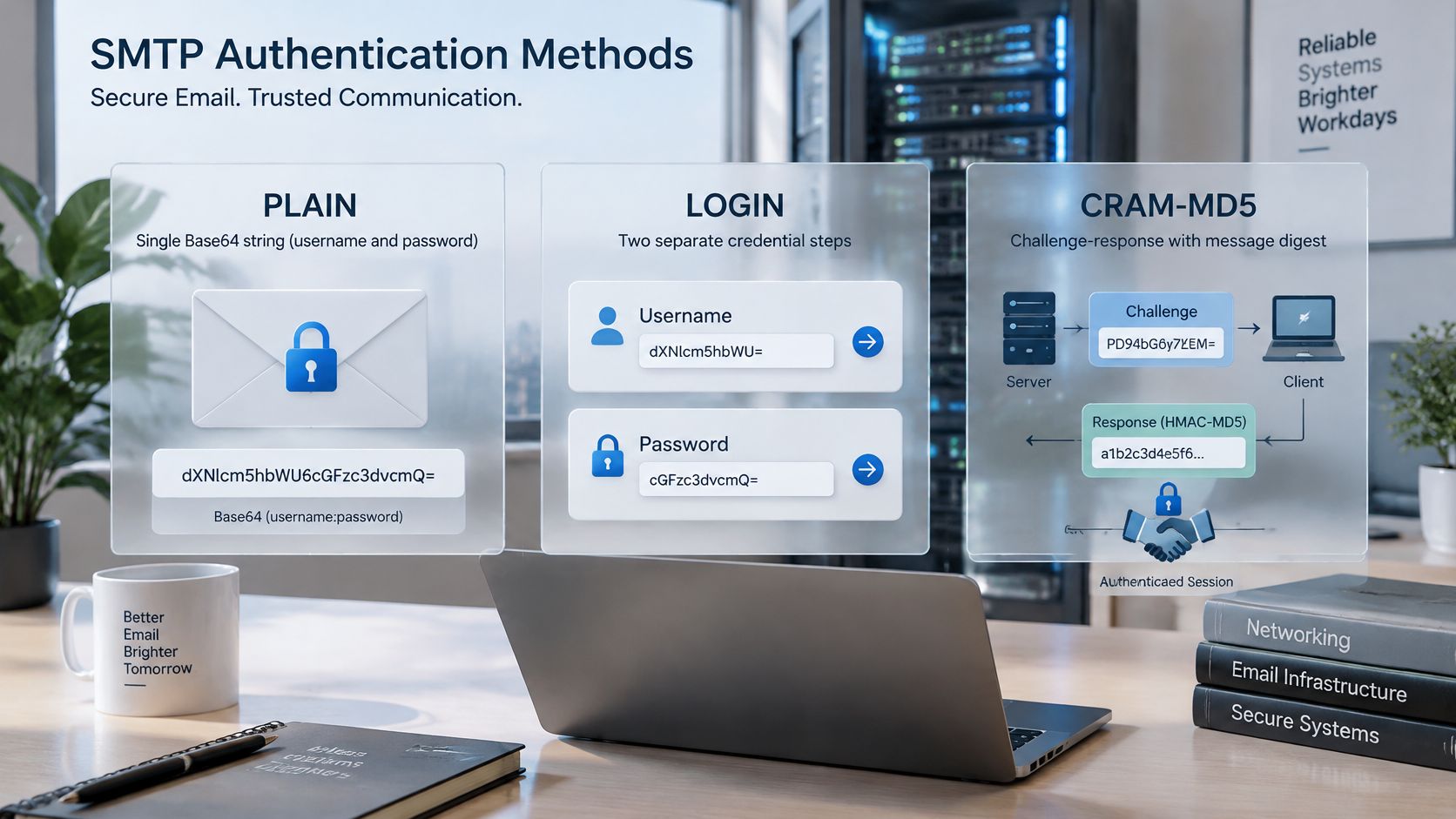
The three mechanisms differ in what crosses the wire, and that difference decides which accounts can use them.
The diagram below maps the common options side by side.
| Mechanism | How credentials are sent | TLS required | Best fit |
|---|---|---|---|
| PLAIN | One Base64 string holding authorization ID, username and password | Yes, RFC 4954 requires support over TLS | Most applications, relays and app-specific passwords |
| LOGIN | Username and password sent as two separate Base64 responses | Yes | Older devices and clients that cannot do PLAIN |
| XOAUTH2 | Username plus a short-lived OAuth 2.0 Bearer token, Base64-encoded | Yes | Microsoft 365 or Google Workspace accounts where basic passwords are disabled |
PLAIN sends everything in one response after the server invites it. LOGIN answers two separate prompts, one for the username and one for the password. Neither is meaningfully safer than the other by itself, since Base64 isn't encryption, and both depend entirely on TLS for confidentiality.
XOAUTH2 replaces the long-lived password with a short-lived token. That shifts the work from storing a secret forever to obtaining, caching, and refreshing a token before it expires. It's more moving parts, but it's also where the major providers have pushed everyone.
Why old tutorials now break
Many guides still treat a username and password as the default. Microsoft's setup guidance for devices and applications sending through Microsoft 365 requires TLS 1.2 or later, recommends port 587, and says sending domains must be configured correctly with SPF, DKIM, and DMARC. Microsoft is phasing out Basic Authentication for SMTP AUTH client submission in Exchange Online in favor of OAuth-based Modern Authentication. Administrators should check Microsoft's current timeline rather than assume a fixed cutover date.
A password-only configuration that worked last year can be rejected today with no change in your code. The tenant changed, not your credential. If the session never reaches the AUTH command, the mechanism is not the bug.
The walkthrough below shows a live authentication exchange so you can see the mechanism negotiation in context.
Decision rules by account type
- Hosted relay or app-specific password: Use PLAIN over port 587 when the account still accepts it. It's the widest-supported path for application submission.
- Older device or embedded client: Use LOGIN only when the device can't do PLAIN. Don't pick it for new code.
- Microsoft 365 or Google Workspace with basic passwords disabled: Use XOAUTH2. Register an app, grant the mail scope the provider requires, obtain a token through a service flow where supported, and refresh it before expiry.
- New application or a tenant that blocks SMTP AUTH: Compare a sending API over HTTPS, such as Microsoft Graph, before you build retry and token logic around a protocol the tenant doesn't want you on.
For unattended services, handle the unhappy paths explicitly. An expired token, a revoked consent grant, or a policy that disables SMTP AUTH for a mailbox should surface as a named error, not as an endless retry. I'd also disable SMTP AUTH for mailboxes that never submit mail, since an enabled but unused login is still an attack surface.
SMTP AUTH proves a client may submit mail. It doesn't establish that the recipient mailbox exists, which is a separate question. The SMTP Existence check simulates an SMTP handshake to confirm a mailbox exists without sending an email, and conflating those two checks causes teams to misread both results.
A one-week go-live test
Pick one account, one port, one mechanism. Send real volume through it for a week and log the reply code at each phase: connection, TLS, AUTH, and MAIL FROM acceptance. Promote the setup only if AUTH succeeds and submissions stay accepted. If you test three mechanisms against two ports at once, you'll never know which change fixed anything.
How to Configure SMTP Authentication Step by Step
The order below matters more than any single setting. Clients that fail usually skipped a step or ran two steps in the wrong order.
The infographic summarizes the sequence before the detail.
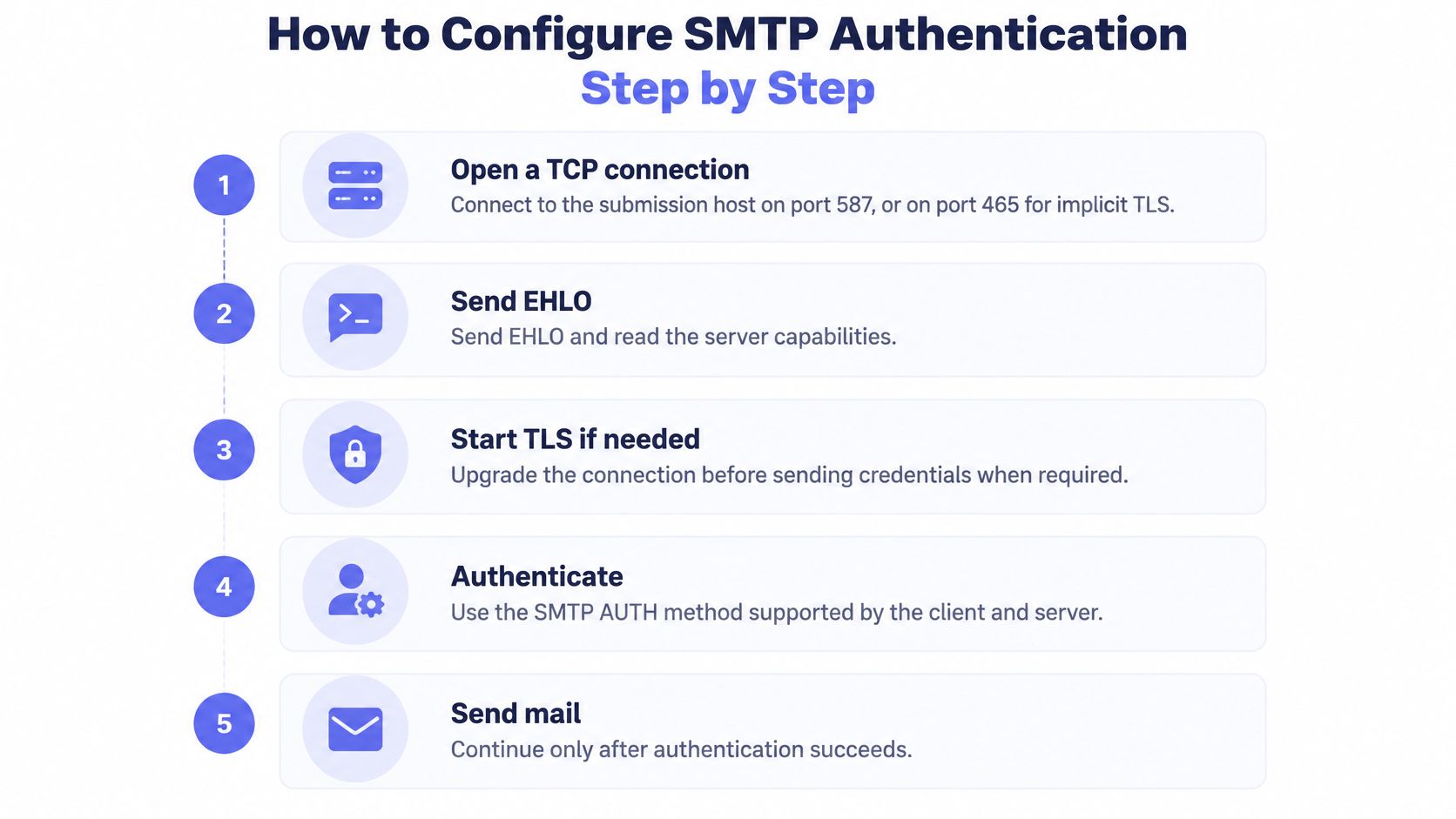
- Open the TCP connection. Connect to the submission host on port 587, or on 465 for implicit TLS.
- Send EHLO with your hostname. Read the full multiline reply instead of assuming capabilities.
- Confirm STARTTLS is advertised on 587. If it isn't, stop and fix the host or port. Don't send credentials to work around it.
- Issue STARTTLS and wait for the 220 reply. Anything else means the upgrade didn't happen.
- Negotiate TLS and validate. Require a modern TLS version, check the certificate chain, and verify the hostname matches.
- Send EHLO again. The capability list after TLS is the one that counts.
- Read the 250 AUTH line and choose a mechanism. Use PLAIN or LOGIN over TLS, or XOAUTH2 for OAuth accounts, as the provider allows.
- Authenticate with a secret from the right place. Read credentials from environment variables or a secrets manager, never from source control.
- Submit the message. Send MAIL FROM, RCPT TO, and DATA, with an envelope sender on the authenticated domain.
- Send QUIT and log reply codes per phase. A single pass or fail hides where things broke.
The two steps clients get wrong
The second EHLO is the most-missed step in the whole sequence. RFC 4954, the SMTP AUTH extension specification specifies that AUTH is advertised through EHLO and that the available mechanisms may change after STARTTLS, and it requires support for SASL PLAIN when used over TLS. A client that reads capabilities only once can miss mechanisms the server exposes only after the upgrade, then report that no suitable mechanism exists.
The other error is authenticating too early. Treat AUTH PLAIN or LOGIN before successful TLS as a configuration failure, because Base64 encoding does not provide confidentiality. RFC 8314 recommends TLS 1.2 or later for mail submission and discourages cleartext submission protocols, so a client that offers to fall back to cleartext should be reconfigured, not accommodated.
If your client will happily log in without TLS when the upgrade fails, that's the bug. Fail closed and alert on it.
Guardrails worth setting explicitly
- TLS minimum and hostname verification: Don't leave either to library defaults you've never read.
- Connection and authentication timeouts: A hung handshake shouldn't hold a worker open indefinitely.
- Bounded retries: Retry transient connection failures with backoff, but don't hammer a credential rejection.
- Mechanism allowlist: Select only what your policy permits, rather than accepting whatever the server advertises.
Finally, keep domain controls separate in your head. A completed sequence proves the submitting client is authorized to submit. It doesn't by itself establish that the visible From domain is legitimate, which is why SPF, DKIM, and DMARC remain separate layers you'll still need.
Client and Server Setup Examples You Can Reuse
Say a SaaS team runs a backend worker that sends welcome emails through a hosted submission service such as smtp.gmail.com on port 587. Three setups cover most of what that team will touch.
Python with smtplib
Create the SMTP object with the host and port 587, call ehlo(), then call starttls() with a default SSL context created from the ssl module so certificate validation stays on. Call ehlo() again, then call login() with the username and an app-specific password read from environment variables. Build an EmailMessage, set From, To, and Subject, add the body with set_content(), send it with send_message(), and close the connection with quit().
The setting that breaks this most often isn't the password. It's forgetting the second ehlo(), or creating an unverified SSL context to make a certificate error disappear. Use the default context and fix the hostname instead. Also note that login() will pick a mechanism for you, so if the account requires OAuth, this path won't work and you'll need the XOAUTH2 approach below.
Postfix as an authenticated relay
Set relayhost to the bracketed host and port, in the form [smtp.example.com]:587, where the brackets stop Postfix from doing an MX lookup on your submission host. Enable smtp_sasl_auth_enable, point smtp_sasl_password_maps at a hash of a sasl_passwd file holding the host, username, and password, and run postmap on that file so Postfix can read it. Set smtp_tls_security_level to encrypt so submission refuses cleartext, and set smtp_sasl_security_options to noanonymous.
Restrict permissions on both the sasl_passwd file and its generated database, reload Postfix, send a test, and read the mail log for the actual reply code. The common failure here is editing sasl_passwd and forgetting to rerun postmap, so Postfix keeps using the old credential and you chase a password you already fixed.
One rule for every example here: secrets live in environment variables, a secrets manager, or a permission-restricted file. Never in the repository, and never in a log line.
XOAUTH2 string format
XOAUTH2 expects a specific string before Base64 encoding. It contains a user field with the mailbox address, a control-A separator, an auth field holding the word Bearer followed by the access token, then two control-A separators at the end. Base64-encode the whole thing and send it as the AUTH XOAUTH2 response.
Refresh the token before it expires rather than after a rejection, and cache it for its lifetime instead of requesting a new one per message. Malformed separators are a frequent cause of rejection, and they present as credential failures, so construct the string in one small tested function.
Multifunction printers and scanners are the awkward fourth case, since many support only basic password AUTH and old TLS. If you're helping someone at home get scan-to-email working rather than wiring up a service, printer scanning help for home users covers that device-side setup. For your own infrastructure, I'd isolate such devices on a dedicated restricted account instead of weakening policy for everyone.
Fixing Common Authentication and Connection Errors
You may arrive here with one reply code copied from a log. Start there, then confirm with phase testing.
| Reply code | Meaning | Usual fix |
|---|---|---|
| 535 5.7.8 | Username and password not accepted | Check credentials, app-specific password or switch to XOAUTH2 |
| 535 5.7.8 after an initial 334 challenge | Expired or revoked XOAUTH2 token | Refresh the token before expiry |
| TLS handshake alert, no SMTP reply code | Certificate verification failure | Check the certificate chain and hostname |
Other codes point away from the password entirely. 530 5.7.0 means STARTTLS must be issued first, so your client tried to authenticate too early. 504 5.7.4 means the authentication type wasn't recognized, which usually means you picked a mechanism the post-TLS EHLO never advertised. 534 5.7.9 means an application-specific password is required. 454 4.7.0 is a temporary authentication failure, often rate limiting, and 421 points at an unavailable service or a blocked port.
Read the class digit first. A 4xx code is temporary and may succeed later. A 5xx code is a configuration or credential problem that retrying won't fix. Our troubleshooting notes on mail that will not send work through the surrounding symptoms.
Diagnose by phase, not by guessing
Test each stage independently. RFC 4954 in its RFC Editor form defines AUTH as a SASL exchange initiated by the AUTH command with the client naming the mechanism, and states that after successful authentication the server must reject another AUTH attempt in the same session with a 503 response.
- DNS and TCP: Does the name resolve and does the port accept a connection before any timeout?
- TLS handshake and certificate: Does the upgrade complete, with a valid chain and matching hostname?
- Post-TLS EHLO: Which mechanisms are advertised now, as opposed to before TLS?
- Mechanism selection and SASL exchange: Does the server accept the mechanism and the encoded response?
- MAIL FROM acceptance: Does the authenticated session accept your envelope sender?
Build a small test matrix
Cover valid credentials, invalid credentials, an expired or revoked token, an unsupported mechanism, malformed Base64, AUTH attempted before TLS, a TLS downgrade attempt, repeated failures, and credentials containing non-ASCII characters. Record reply codes and latency per phase. Never log passwords, bearer tokens, authorization strings, or message bodies.
Report success conditionally. Give the TLS-success rate first, then the AUTH-success rate among TLS successes, then the accepted-submission rate among authenticated sessions. A single blended number hides whether you're losing sessions to certificates or to identity, and those have completely different owners.
Stop retry loops on credential rejections. Unlimited retries don't fix a wrong secret, and they trigger account lockouts that turn one bad deploy into an outage.
Watch for two server-side traps as well. Advertising PLAIN without TLS invites exactly the exposure you're trying to avoid, and failing to remove mechanisms after a TLS policy change leaves clients negotiating something you've supposedly disabled.
Why Login Alone Does Not Authenticate Your Mail
Your client receives 235 after AUTH, and the submission server accepts the message. That exchange proves the client may submit mail through that server. It does not prove the From domain on the message is authorized. Receiving systems check that separately, after your own server has already said yes.
SPF lets a domain identify its authorized sending servers. DKIM adds a cryptographic signature supporting message integrity and domain attribution. DMARC connects those results to a policy describing how receivers should handle failures, and it requires alignment between the visible From domain and the domain that passed SPF or DKIM. A clean login can still produce a reject or a spam-folder placement when any of those three fail.
Adoption is already high enough that a missing record stands out. StartTLS, SPF, and DKIM adoption generally ranged from approximately 89% to 99% across EU Member States, while DMARC averaged about 71%, according to a Joint Research Centre assessment for Q1 2024. DANE and DNSSEC were far lower, at roughly 2% and 5%.
A checklist you can work through today
- SPF coverage: Confirm your record includes the service submitting mail.
- DKIM selector: Publish the selector your provider gives you and confirm signing is enabled.
- DMARC rollout: Start at p=none to collect reports, fix alignment, then move toward quarantine.
- Alignment: Check the From domain against the DKIM signing domain or the SPF envelope domain.
- Read the result: Send one test to a mailbox you control and inspect the Authentication-Results header for each check.
If a message fails those checks after a clean login, our guide to resolving an email authentication error covers the follow-up. Authentication left enabled on mailboxes that do not need to submit, or still bound to a legacy password, remains an exposure even when the domain records are correct.
Authenticated submission only gets your message accepted by your own server, so pair it with checks on the addresses you send to. Mailbeam verifies addresses in real time inside signup flows, running syntax, MX, and SMTP existence checks, so you can catch many undeliverable addresses before they reach your submission queue. Visit Mailbeam to add that check to your registration form before your next deploy.