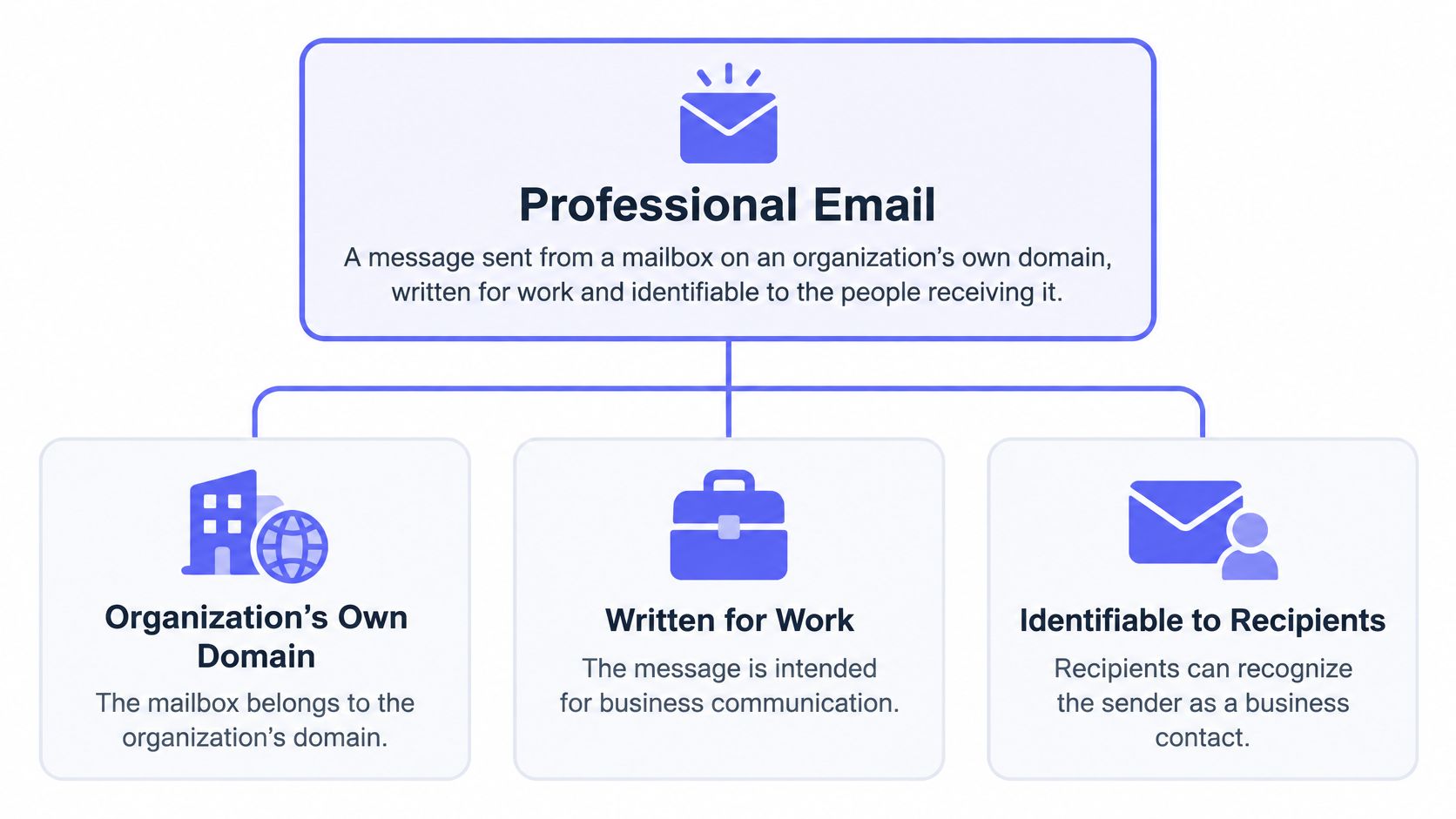
A professional email is a message sent from a mailbox on an organization's own domain, written for work and identifiable to the people receiving it. If you're deciding whether an address looks credible, or setting up a signup form that needs to accept genuine customers without letting bad addresses through, the answer involves more than polite wording: the domain, the message, and the sender's identity all matter.
Table of Contents
- What a Professional Email Address Actually Is
- Professional and Personal Address Examples Side by Side
- Domain Ownership and Role Inboxes by Use Case
- How Domain Setup Affects Inbox Placement
- Trust Signals That Show a Message Is Genuine
- Signup Verification Steps and Form Audit
What a Professional Email Address Actually Is
Consider jane.okafor@acmeco.com. The part before the @, jane.okafor, identifies the mailbox. The part after it, acmeco.com, identifies the organization that controls the domain. Think of the mailbox as Jane's desk and the domain as the building and its reception desk. A company domain gives recipients a way to recognize which organization stands behind the address.
A professional email also needs to work as a message, not just an address. It should have a clear subject, an appropriate greeting, a concise body, relevant links or attachments, and a signature that identifies the sender and organization. Those details help the recipient understand what the email is about, what action it requires, and who is accountable for sending it.
Why the address format isn't enough
Personal and business addresses follow the same basic format. The @ convention dates to 1971, when computer engineer Ray Tomlinson sent the first networked email while working on ARPANET and used the symbol to separate a username from its destination computer or domain. The Association for Computing Machinery's account of email's development also describes email's role as a persistent, addressable channel for workplace communication and records.
So there's no special syntax that makes an address professional. A correctly formatted address at a personal provider can still be personal, while a mailbox on a company domain can support business communication. Professionalism comes from the identity the domain conveys and the care taken with the message.
Professional and Personal Address Examples Side by Side
| Address | Type | Verdict | Why |
|---|---|---|---|
jane.okafor@acmeco.com |
Named person on company domain | Professional | Accountable sender on the brand's own domain |
billing@acmeco.com |
Role address on company domain | Professional with context | Legitimate shared mailbox; name a contact |
noreply@acmeco.com |
Automated sender | Professional for notices only | Replies go unread |
jane.okafor@gmail.com |
Personal free provider | Personal | Says nothing about the company |
hotjane87@outlook.com |
Nickname on free provider | Personal, informal | Handle reads as casual |
jane.okafor@acmeco-support.net |
Lookalike domain | Anti-pattern | Domain may not belong to the company |
jane.okafor@acme-co.com |
Altered brand spelling | Anti-pattern | Could be a spoofed or unrelated domain |
x7k2q9@disposable-mail.example |
Disposable address | Anti-pattern | Throwaway with no accountable owner |
The examples most likely to cause confusion are role addresses and free-provider addresses. billing@acmeco.com can be entirely legitimate: several staff members may need to manage billing messages. But because the mailbox doesn't identify one person, a business conversation should also name an accountable contact. An automated noreply@ address has a narrower purpose. It can send a receipt or status notice, but it's a poor choice for a conversation that needs a reply.
A free-provider address isn't automatically deceptive. It doesn't show, by itself, that the sender represents AcmeCo. A person may use a personal address for private correspondence or freelance work, but a recipient can't infer company ownership from jane.okafor@gmail.com.
Lookalike domains deserve particular care. Extra words or hyphens, altered brand spellings, disposable addresses, and hard-to-read handles can obscure who controls the mailbox. If you can't tell from the address who controls the domain, treat the identity as unverified until you confirm it another way.
Domain Ownership and Role Inboxes by Use Case
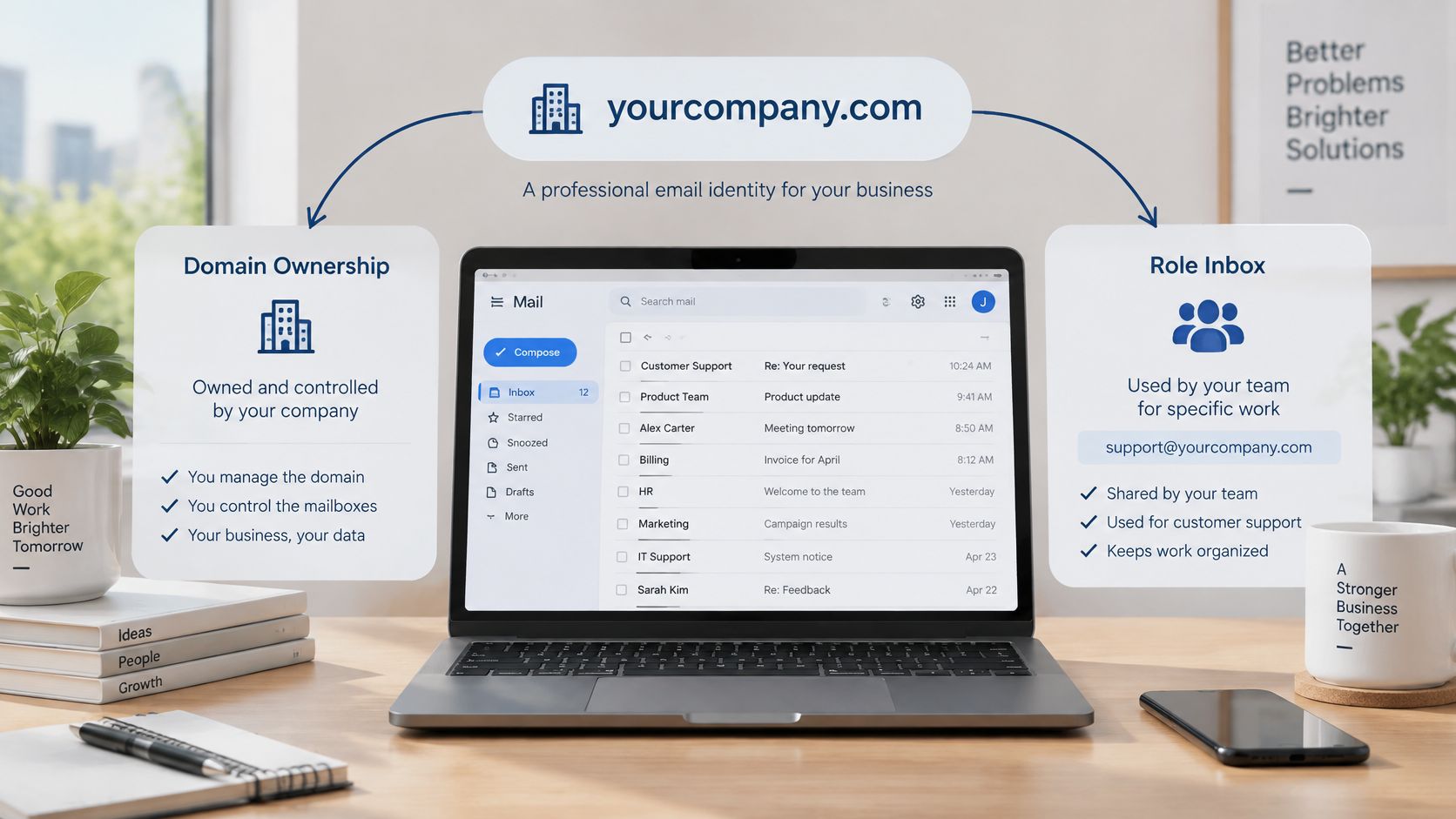
Two distinctions make address policies easier to apply: who controls the domain and who uses the mailbox. A company domain connects an address to an organization that controls that domain. A personal inbox belongs to an individual, who may be acting as a freelancer or job applicant rather than as a company representative.
A named mailbox usually points to one person, while a role inbox such as finance@ or support@ serves a function and may be shared. The Internet message format standard, RFC 5322, defines an address as a local part followed by @ and a domain. The domain identifies where mail is delivered; the domain's mail system interprets the local part.
| Case | Company domain needed | Free provider OK | Role address OK | Notes |
|---|---|---|---|---|
| Vendor onboarding | Yes | No | Only with a named contact | Vendor needs an accountable person |
| Payment approval | Yes | No | No | Approvals need a named individual |
| Customer support contact | Yes | No | Yes | A shared inbox is normal |
| Freelancer or sole trader | No | Yes | Not applicable | Individual identity is the sender |
| SaaS trial signup | No | Yes | Flag for review | Check for disposable addresses |
| Job application | No | Yes | Not typical | Candidates often use personal addresses |
| Regulated account opening | Yes | No | Only with a named contact | Compliance needs identifiable owners |
For a customer-support page, a role inbox can make sense because a team needs to handle incoming requests. For a payment approval, the organization should be able to identify the individual responsible for the decision. Vendor onboarding often benefits from both: a company domain that identifies the vendor and a named contact who can answer questions.
Technical checks answer narrower questions. A syntax check catches a malformed address. An MX lookup checks whether the domain publishes a mail-exchange route. Neither confirms that a particular mailbox exists, so keep the results separate rather than treating them as a single yes-or-no test. For more on choosing addresses for shared teams, see this guide to role-based email addresses.
How Domain Setup Affects Inbox Placement
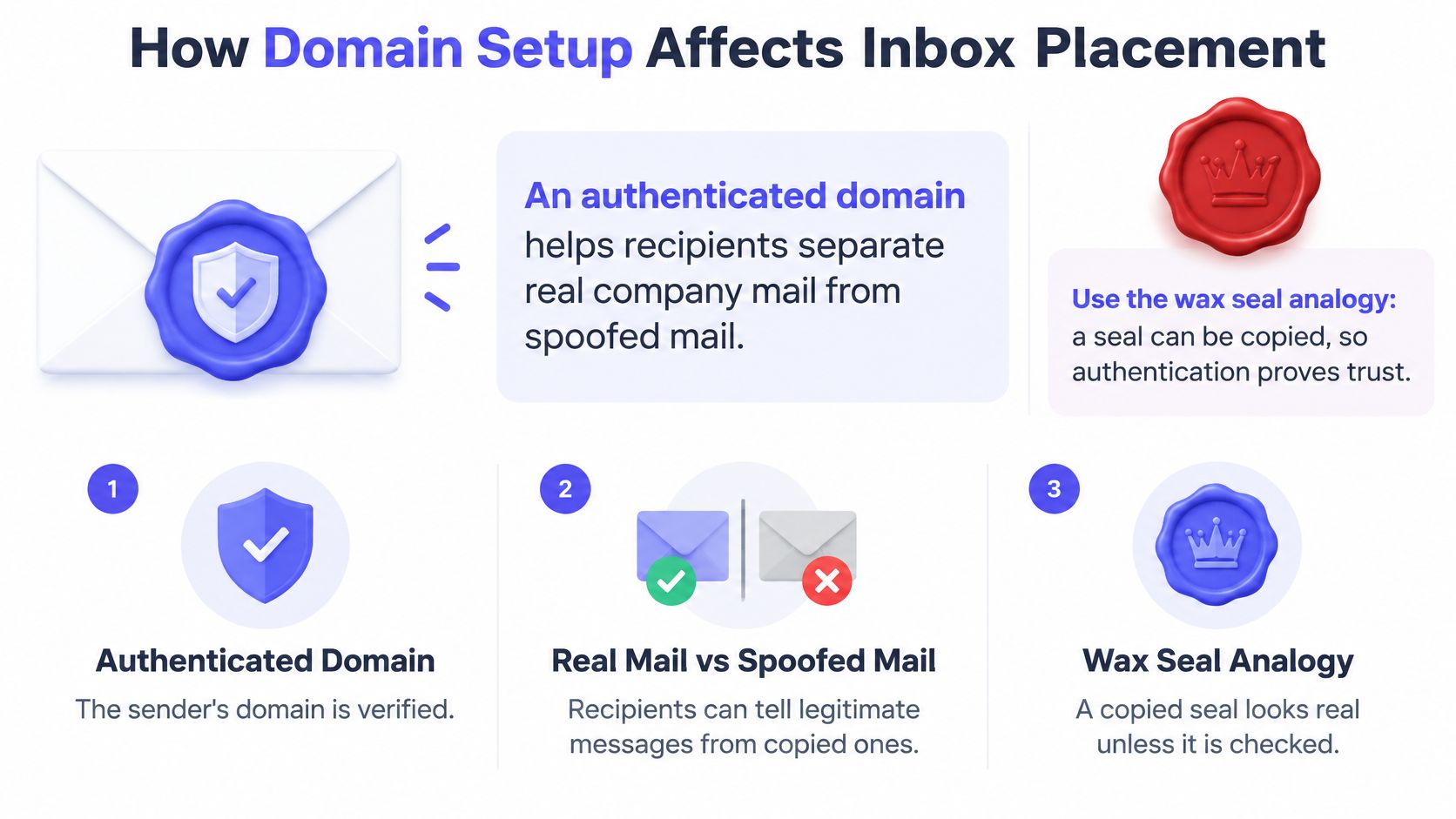
A message from a company domain can still be spoofed. Receiving systems need a way to check whether the sender is authorized to use that domain. Authentication works like a verifiable seal: it helps distinguish a legitimate sender from someone copying the company's address.
The National Institute of Standards and Technology's trustworthy email guidance describes protections that help verify senders and protect email in transit:
- SPF publishes which sending hosts are authorized for the domain.
- DKIM adds a cryptographic signature that receiving systems can check against a public key in DNS.
- DMARC checks whether the authenticated domain aligns with the visible
Fromdomain. It also lets the domain owner specify how receivers should handle authentication failures and send reports. - TLS protects transmission between mail systems.
A practical setup checklist
Publish SPF, taking care not to create excessive DNS lookup complexity. Enable DKIM and manage its signing keys. Roll out DMARC gradually, starting with monitoring before moving to enforcement. Keep the visible From domain aligned with the domain authenticated by SPF or DKIM.
Check formatting too. Use valid standard headers, including From, To, Date, Subject, and Message-ID. Messages that lack proper formatting or authentication are more likely to be delayed, rejected, or filtered into spam. For future campaigns, maintain list hygiene for better deliverability.
To inspect a domain, use a DNS lookup tool to check whether SPF and DMARC records are published and whether the DKIM selector has a public key. Your email provider or administrator can tell you which DKIM selector to look up. If messages are already going to spam, follow this guide on how to stop mail from going to spam.
Trust Signals That Show a Message Is Genuine
Good writing doesn't prove that an email is genuine. A message can be courteous, well formatted, and grammatically perfect while coming from someone impersonating a colleague or supplier. In one 2025 quarterly dataset, impersonation accounted for 82% of business-email-compromise cases, according to the VIPRE 2025 Q4 Email Threat Report.
Read the sender details as carefully as the body. Look for a display name that doesn't match the sending domain, a Reply-To address that differs from the visible From address, an unexpected attachment or link, or a request to change payment details or skip usual approvals. Urgency involving money or credentials is another reason to pause and verify rather than act straight away.
Verify the channel, not just the wording: For a new payment instruction, call a phone number already on file or use the contact listed in your contract. Don't use a number or link supplied in the email you're checking.
A free mailbox isn't automatically fraudulent, but it's a weak identity signal for company business. A professional signature also doesn't verify the sender. It can be copied along with a logo and display name, so check the address and confirm sensitive requests independently. If a message says noreply@, don't assume it's a useful reply channel; learn when a no-reply email address makes sense.
A professional email combines clear communication with operational trust: a recognizable domain, a consistent sender identity, a clear purpose, proportionate requests, and contact channels the recipient can verify.
Signup Verification Steps and Form Audit
A signup form needs to distinguish a malformed address from a real but unverified mailbox, without rejecting people just because a check can't reach a firm conclusion. Use several checks, then choose an outcome that matches the form's purpose.
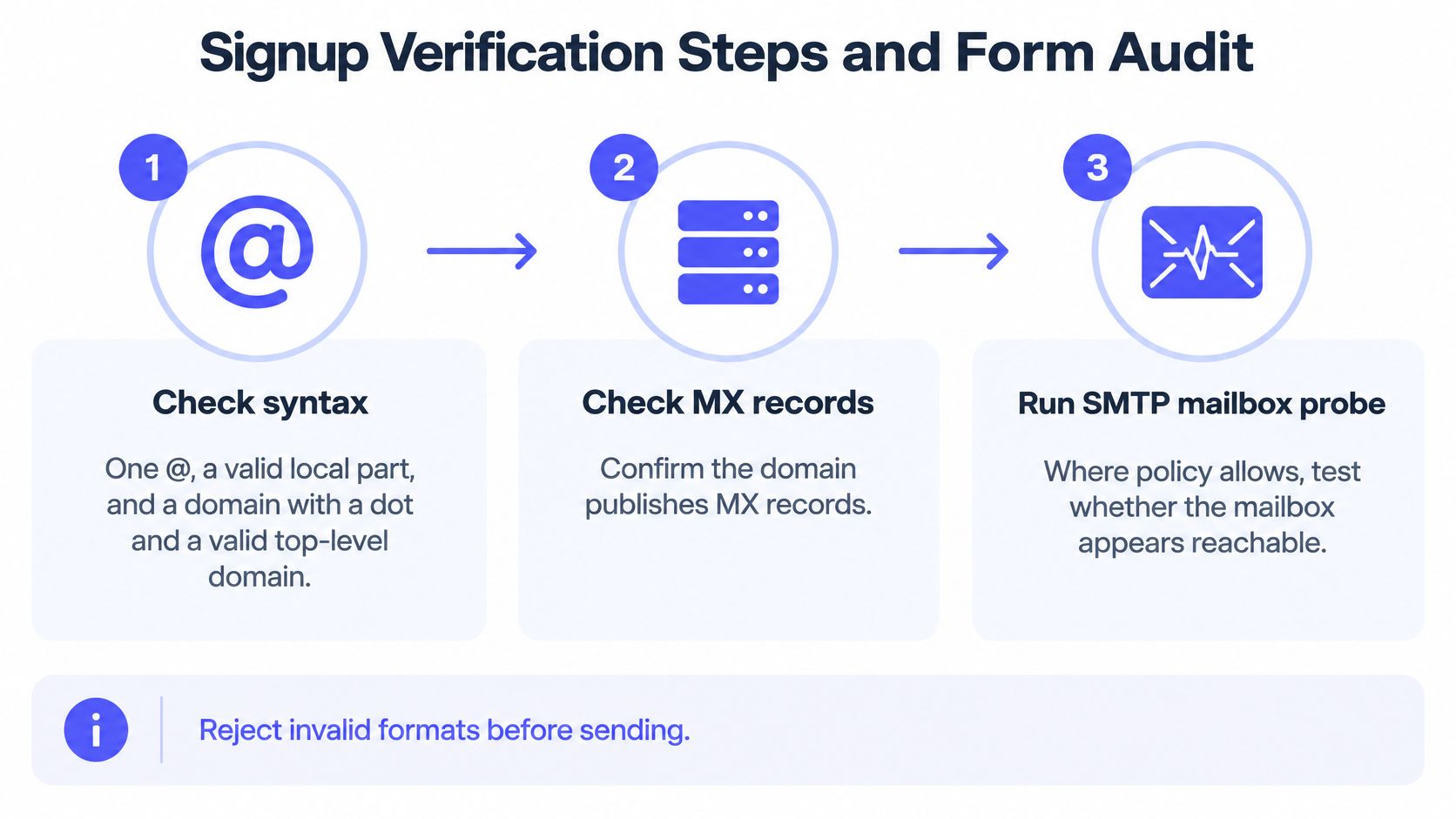
Check the address in stages
Check syntax. Confirm there's one
@, a valid local part, and a domain with a dot and a valid top-level domain. This catches basic formatting errors before your system tries to send anything.Check the domain's MX records. A domain can look correctly formatted but have no mail-exchange route. An MX check tells you whether the domain publishes a route for incoming mail; it doesn't confirm that a particular mailbox exists.
Use an SMTP mailbox probe where policy allows. A probe may help assess whether a mailbox appears reachable, but it can be slower and sometimes inconclusive. A catch-all server accepts messages for any address on its domain, so a probe against one can't reliably tell whether the specific mailbox exists.
Check address type and risk flags. Review whether the address is disposable or role-based, and whether it uses a free provider. These are inputs to your form's policy, not automatic proof that a person is genuine or fraudulent. For example, Mailbeam's Free providers check identifies Gmail, Hotmail, Yahoo, and more than 200 other free email providers. Its Role-based check flags addresses such as
info@,noreply@, andadmin@, which rarely belong to real users.Choose an outcome and explain it. Accept the address, accept it with a flag, ask for a correction, or block it. Give the user a message that describes the specific issue, rather than returning a generic failure.
| Result | Action | Message to user |
|---|---|---|
Typo in domain (gmial.com) |
Ask for correction | Did you mean gmail.com? |
| Domain has no MX records | Block | This domain does not receive email; enter another address |
Role address (info@, noreply@) |
Accept with flag | Shared mailbox; name a contact if required |
| Disposable address | Block or flag per policy | Use a permanent email address |
| Check timed out or catch-all | Accept with flag | Do not block a real customer |
| High-stakes account, valid address | Send confirmation link | Confirm to activate your account |
A typo needs a different response from a domain that doesn't receive email. Likewise, a timeout or catch-all result isn't enough to justify blocking a real customer. Mailbeam can block disposable addresses and department mailboxes such as info@ and admin@ before they enter a customer's system; choose that kind of rule only when it fits the form's purpose.
For high-stakes accounts, send a confirmation link before activation. That confirms the user can access the address, while the checks help your system catch formatting and domain issues before sending.
Run a weekly form audit
List every form that collects an email address, then set a policy for each one using its use case. A payment approval, job application, support request, and free trial don't need identical rules. For each form, decide whether it requires a company domain, accepts free providers, and flags role addresses.
Next, run a sample of recent signups through an email checker. Compare how many use free-provider, role-based, and disposable addresses, then track bounces for two weeks against that sample. The point isn't to reject every address with a flag. It's to see whether your form's rules match the people and workflows it serves.
Mailbeam offers a free Email Verifier and Disposable Email Checker for reviewing individual addresses. Whether you use those tools or another checker, make the final decision for each form explicit: require company domains, accept free providers, or flag role addresses for review.
Mailbeam helps you check addresses for syntax, MX records, mailbox reachability, disposable domains, role addresses, and other signup risks before you send email. Use the live verification API for signup flows or the web tools for individual checks, then visit Mailbeam to choose the approach that fits your form.